





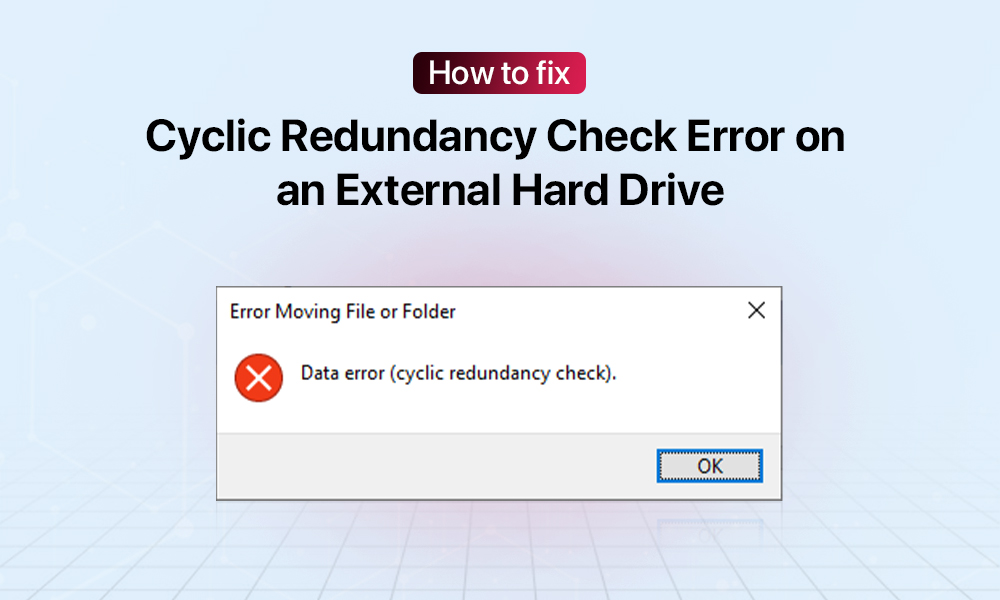
The “Data error (cyclic redundancy check when initializing disk)” message can get in the way of you seamlessly accessing your files on the drive. A mismatch in CRC values suggests something went wrong during data transfer, and error checking caught irregularities. Scenarios often point to logical issues or broken connections. Looking into typical issues helps clarify what went sideways. Instead of forcing fixes, careful steps guide safer examination of problems.
What is the Cyclic Redundancy Check Error?
What happens in a CRC error? Data fails to transmit properly between devices. When this occurs, what arrives isn’t correct – it’s been altered during transfer. Because of this, Windows might show a mismatch when loading files off a disk. There you see: “Data Error (Cyclic Redundancy Check).” That message appears once checksums fail to match expected values.
Possible causes of the “Cyclic Redundancy Check” error
| Connection / environment issues | Faulty USB/SATA cables, flaky ports, loose connectors, power loss during writes, unsafe removal, and network transmission issues |
| Physical damage | Bad sectors, disk wear‑out, overheating, shocks, scratched optical media, faulty or aging drives. |
| Software issues | File system corruption, interrupted installs/copies, registry or system file corruption, low disk space, driver or software bugs |
Possible scenarios when the error occurs
Windows users often face the “Data error (cyclic redundancy check)” message when using an external hard drive in the following cases:
- Copying files
- Running backups (failures in the middle of the process)
- An external HDD is showing as RAW/unallocated in Disk Management
- An external drive is becoming inaccessible
5 Ways to fix Cyclic Redundancy Check Data Error
1. Check connectivity issues
Before doing anything, check if the cables look damaged. A weak power connection might stop Windows from recognizing your external drive. When a cable feels broken, swap it out right away. If that doesn’t fix it, test a different USB port instead.
A shaky internet connection might also be behind the CRC error. Switching providers could help. Clearing the cache might also make a difference. R2estarting the download using fresh data is another option.
2. Update your drivers
Every now and then, swapping out old system pieces keeps things running smoothly. Staying behind on updates? You might try swapping them in yourself.
- Open Device Management.
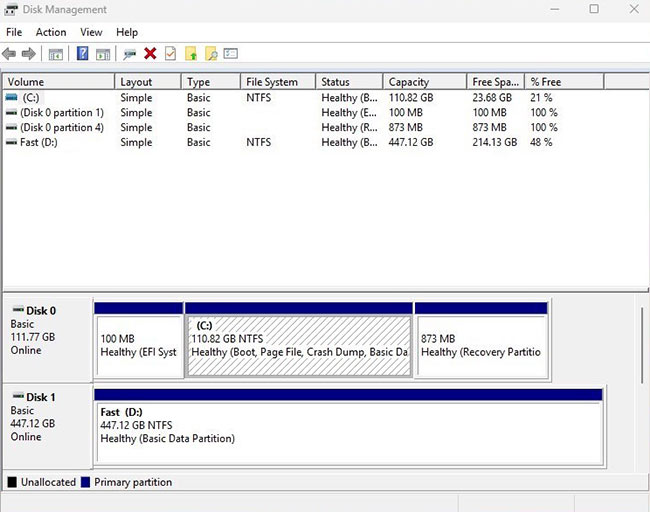
- Expand categories and find the external drive in question.
- Right-click on the drive.
- Choose Update Driver inside the menu.
- Start the search tool to find updated driver versions.
- Windows checks for new updates.
- These get applied automatically.
3. Scan the system with SFC
When a CRC error happens due to messed-up Windows system files, running SFC might clear up the problem. Fixing broken files like this often stops the issue from returning. A scan by SFC cannot solve problems caused by faulty hardware.
To perform the SFC scan:
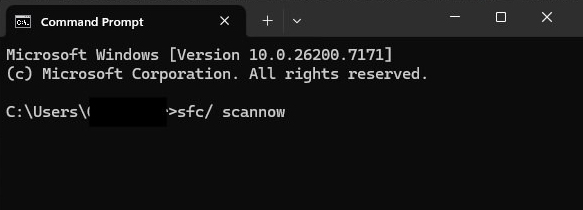
- Go to Command Prompt (run as administrator)
- Type: “sfc /scannow” and hit Enter.
- Complete the scan (it will correct damaged files automatically).
- Restart your PC.
4. Scan and repair drive errors
Finding and fixing errors in Windows drives happens through built-in utilities. Things like flawed sectors or damaged file structures often cause CRC failures. Running CHKDSK works whether you type it at the command prompt or click through menus.
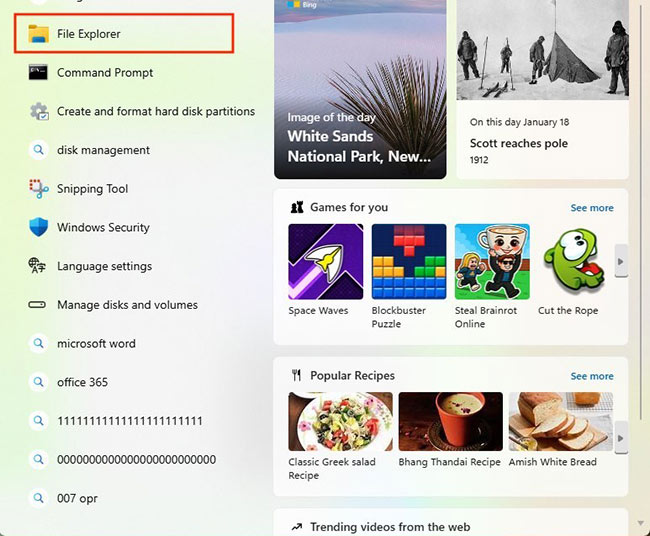
Running CHKDSK through the desktop interface looks like this:
- Search for File Explorer in the Task Bar.
- Right-click your external drive.
- Choose Properties.
- Move over to the Tools section, then to Check.
- Click on the Check icon.
Here’s how to start CHKDSK from the command prompt:
- In the Command Prompt (as Administrator), type “chkdsk X: /f /r”.
Note: X stands for the letter of the external drive.
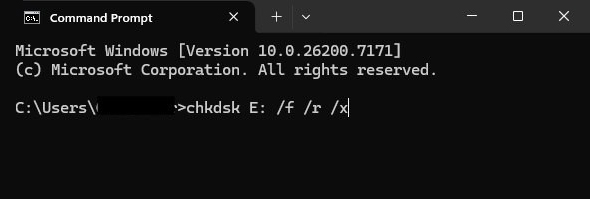
- Press Enter on your keyboard to execute the command.
- Restart the computer.
- Check if the mistake still shows up.
5. Format your external drive
When everything fails, giving the broken drive a clean start might work. That path wipes data completely, meaning file recovery tools become essential to bring back what vanished.
To format the drive:
- Use the Start Menu to open Disk Management.
- Right-click on the external drive.
- Select Format.
- After formatting is over, check if the CRC error persists.
Looking for a reliable data recovery tool? Check Stellar Data Recovery for Windows. It can effectively restore the data from formatted, encrypted, or corrupted drives.
DOWNLOAD HERE
How to Prevent the CRC Error in the Future
Before we get into prevention steps, saving your files often makes sense. Store no less than three copies – spread across two kinds of storage – with one located away from your main location (3-2-1 rule).
To prevent the CRC error:
- Always eject your external drive safely.
- Protect your drive from heat and physical damage.
- Use good-quality cables.
- Run system checks regularly (especially on aging devices).
Final Thoughts
A mismatched CRC code during disk setup might seem minor, yet it signals trouble moving data reliably. This kind of glitch often blocks Windows from accessing the storage properly. When such errors pop up, examine how devices link together – check wires, ports, or settings nearby. Sometimes, flaws in programming cause problems; tools built into Windows help spot and fix hidden mistakes. Something’s gone wrong with the hardware – fixing it needs someone who knows what they’re doing.
FAQ
When problems like constant CRC errors, spinning drives, or repeated losses happen, it could show that the external hard drive has been physically harmed. Getting advice from skilled experts may help more – they know how to protect what’s stored inside.
Windows can’t disable Cyclic Redundancy Check. It keeps data precise during operations like storing, copying, or shifting files – preventing mistakes regardless of location.
Formatting your drive is a last-resort solution for the CRC error. Avoid formatting until data recovery succeeds to prevent permanent data loss.
