





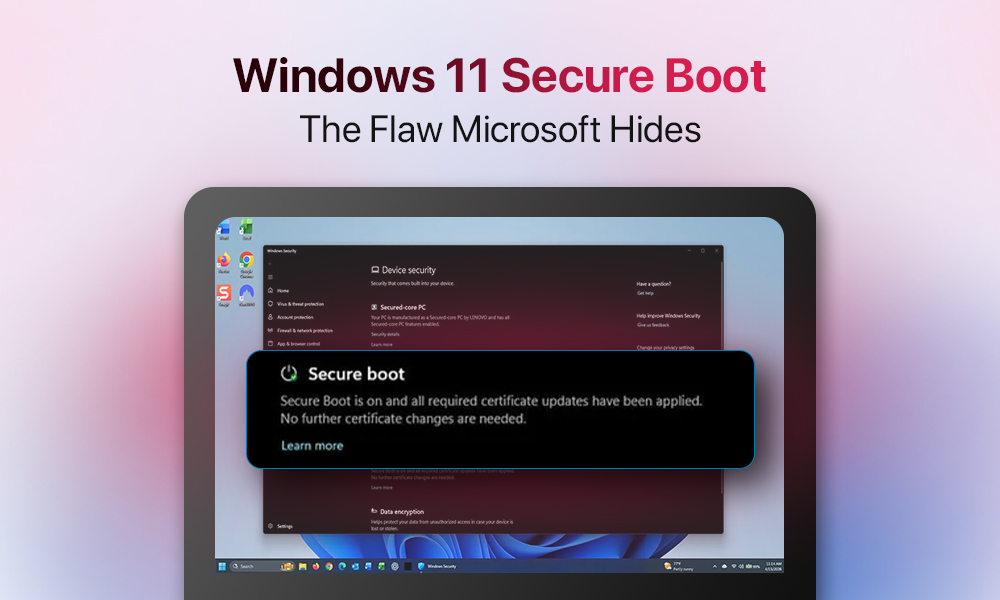
Your Windows PC shows it clearly in the BIOS settings: “Secure Boot Enabled”. It sounds reassuring. It sounds final. For most users, that green light means the system is protected at its deepest level, long before Windows even loads. The problem is that “enabled” no longer means what it used to, and Microsoft hasn’t been particularly loud about telling you that. Let’s find out what has changed.
We aim to explore how the Microsoft Secure Boot flaw occurs on Windows 11 and what you can actually do about the problem.
Table of Contents
1. Understanding the Secure Boot Mechanism
2. How Does the Bypass of Secure Boot on Windows 11 Occur?
3. How Did Microsoft React to the Secure Boot Flaw (Windows 11)?
4. Steps to Protect Your PC from Microsoft Secure Boot Flaw on Windows 11
6. FAQ
Understanding the Secure Boot Mechanism
We should start by pointing out what it is defending.
This is how Windows Secure Boot works:
| Power on ↓ | |
| UEFI loads ↓ | |
| Secure Boot checks the signature ↓ | |
| ✅Trusted signature (Bootloader allowed to run) ↓ | ❌ Signature rejected (Boot blocked) |
| Windows Boot Manager runs ↓ | |
| Kernel loads ↓ | |
| OS fully loads | |
- You press the power button on your PC.
- Windows OS doesn’t start immediately.
- UEFI handles hardware initialization at startup.
- The environment for Windows to load is prepared.
- The signature check is performed during which the bootloader’s signature is checked against the trusted signature database (DB) and the forbidden signature database (DBX).
- The Windows Boot Manager runs if cleared by Secure Boot.
- Windows takes over from the bootloader, and the kernel initializes
- The OS loads, and Windows protections become active.
How Does the Bypass of Secure Boot on Windows 11 Occur?
Hackers are not cracking Secure Boot per se. They are not finding a backdoor in its cryptographic logic or reverse-engineering Microsoft’s signing keys. Instead, they are exploiting the very thing Secure Boot is built on, namely its trust in officially signed software.
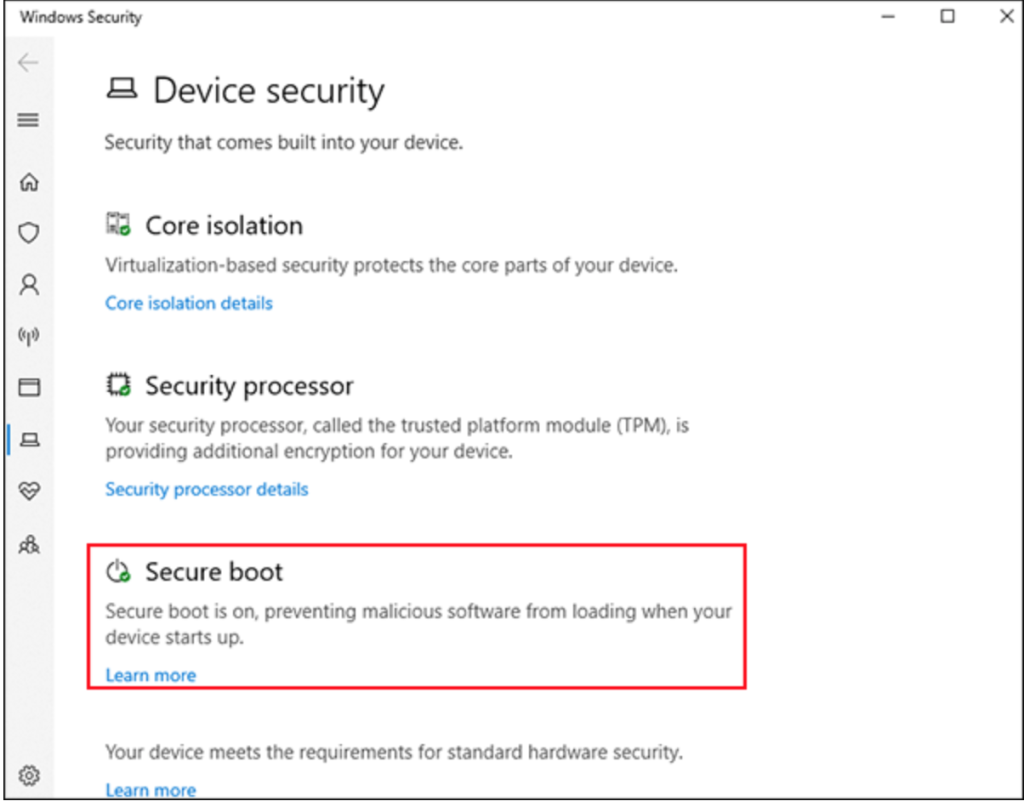
The technique is called a downgrade attack. During the attack, hackers rolled back the Windows Boot Manager to an older version (known for its security vulnerability). As they gain control of the machine during its earliest boot phase, before any of Windows’ defenses are active, they can execute malware freely.
This is what the downgrade bypass looks like:
| The attacker swaps bootloader (It gets replaced by an older, vulnerable version) ↓ |
| Secure Boot passes this version (It’s not on the DBX revocation list) ↓ |
| Malware runs pre-OS |
The BlackLotus attack: case study
This is precisely how BlackLotus worked. Appearing for sale in October 2022, BlackLotus was the first publicly known UEFI bootkit to bypass Secure Boot in the wild. It exploited a vulnerability called “Baton Drop,” which the U.S. National Security Agency described as allowing an attacker to take control of an endpoint from the earliest phase of software boot. It threatened millions of Windows 10 and Windows 11 machines simultaneously.
The problem is that the vulnerable bootloaders exploited by BlackLotus were never added to the DBX. The revocation mechanism exists. It is simply not being used to neutralize the threat it was designed for.
How Did Microsoft React to the Secure Boot Flaw (Windows 11)?
In May 2023, the official patch to fix the issue was released. But the update was not automatic. Instead, applying the patch fully required users to manually edit the Windows Registry, run PowerShell commands with administrator privileges, manually add the affected certificates to the Secure Boot DBX, and apply a Secure Version Number to the firmware.
The problem is that an average Windows user is not doing that. Microsoft made a deliberate choice to leave the fix as a manual process. Pushing an automatic update to revoke the vulnerable bootloaders carries a real risk of bricking machines.
Some devices may fail to apply the new Windows Boot Manager and become inoperable. Microsoft decided the risk of a forced patch outweighed the benefit for most users. So it left the decision in the hands of users (who are often unaware of the issue).
4 Steps to Protect Your PC from Microsoft Secure Boot Flaw on Windows 11
Exploiting the Microsoft Secure Boot Flaw requires physical access to the machine or administrative privileges within the OS. That limits the threat considerably for most home users. Those who are in the risk zone are mostly in enterprise environments.
There are 4 practical steps worth taking:
Step 1: Avoiding untrusted device connections.
Step 2: Restriction of administrator rights to only when operationally necessary.
Step 3: TPM 2.0, where your architecture supports it.
Step 4. BitLocker with a pre-boot PIN to mitigate offline attacks.
None of these are a substitute for a properly enforced Secure Boot. They are compensating controls for a gap Microsoft has chosen to leave open.
In Conclusion
All in all, the “Enabled” status in your BIOS settings is not wrong. Secure Boot is running: checking signatures and doing its job. The core problem exposed is structural and consists of a lack of updates in the revocation list and a communication gap between Microsoft and Windows users. The practical steps described are meaningful compensating measures (mind, they are not a replacement for a properly enforced Secure Boot).
FAQ
No, there’s no practical reason to switch off Secure Boot. Doing so can introduce a real security risk. Only advanced users who modify their system at a low level sometimes need Secure Boot disabled. Generally, it is not recommended to turn it off simply out of curiosity.
Secure Boot is still effective in what it was originally designed to do. However, it does have some weaknesses and, if compromised, can’t distinguish between a legitimate boot and a malicious one.
One way to do it is to manually update the DBX revocation list. Microsoft provides updated DBX files through the Microsoft Update Catalog. You can apply it manually through your UEFI firmware interface.
