





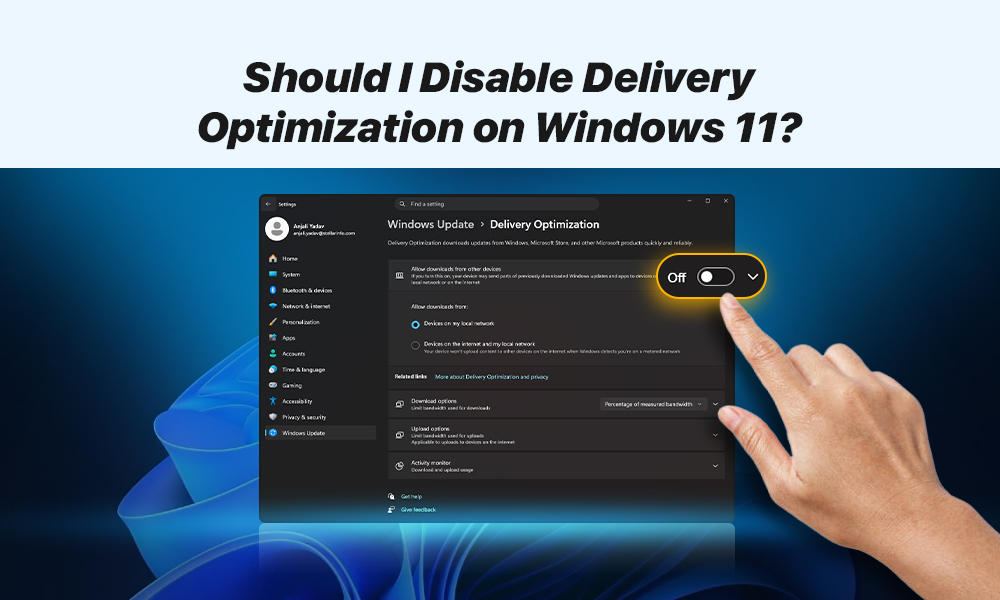
A Windows feature is quietly running on your computer right now. Most PC users have no idea it’s there. It’s called Delivery Optimization. It’s built into Windows. And by default, your internet connection may be used to upload Windows updates to complete strangers.
Here’s what’s actually happening. Here’s why it matters. And here’s how control can be taken back.
In This Blog Post:
- What Is Delivery Optimization on Windows 11?
- Why Should You Care About Windows Update Delivery Optimization?
- How to Check If Windows Update Delivery Optimization Is On Right Now
- Ways to Manage Delivery Optimization in Windows 11
- What Does Delivery Optimization in Windows 11 Teach Us?
- Wrap Up
What is Delivery Optimization on Windows 11?
The logic behind the feature is straightforward. Windows updates are enormous (sometimes several gigabytes). Microsoft has to push them to hundreds of millions of machines. What they do is offload part of the distribution to users’ own devices.
According to Microsoft’s internal data, in large enterprise environments, more than 76% of update content can come from peer devices rather than Microsoft’s servers directly.
What causes concern? By default, this sharing doesn’t stop at your front door. Your PC may be uploading update data to completely unknown devices across the wider internet, not just to the other laptop on your desk.
Why Should You Care About Windows Update Delivery Optimization?
The feature isn’t dangerous. Microsoft is careful to point out that Delivery Optimization only ever shares cryptographically signed update files, and never your personal data. So this isn’t a privacy breach in the traditional sense.
The real issue is bandwidth. Even if your download speed is fast, your upload is often far more limited. Commonly, we talk about 20–30 Mbps or less on many residential plans.
The same bandwidth you depend on for:
- Video calls
- Cloud backups
- Plex streaming
- Multiplayer gaming
- Anything else that pushes data outward
When Delivery Optimization is quietly uploading update fragments in the background, you might notice your video calls stuttering, your cloud backups crawling, or your connection feeling sluggish. The feature is designed to throttle itself, but “automatic bandwidth management” and “not affecting your connection” aren’t the same thing, especially on slower or more congested lines.
Beyond bandwidth, there’s a simpler principle at stake: your internet connection is yours. If a program is going to use it to serve other people’s needs, that should be your choice to make, not a default setting buried four menus deep in Windows Update.
How to Check If Windows Update Delivery Optimization Is On Right Now
Before changing anything, it’s worth seeing how much uploading your PC is actually doing. Windows includes a built-in activity monitor for Delivery Optimization.
- Go to Settings.
- Proceed to Windows Update.
- Choose Advanced options.
- Under Delivery Optimization, check the Activity monitor.
There you’ll find a breakdown of downloads by source, average speeds, and how much your PC has uploaded to other devices this month. Many users who check this for the first time are surprised by the numbers.
Ways to Manage Delivery Optimization in Windows 11
Your options are not limited to just switching the features off (though it’s also possible). Let’s have a breakdown of possible solutions.
Option 1: Turn off delivery optimization in Windows 11 completely
- Go to Settings
- Choose Windows Update and Advanced options
- Select Delivery Optimization.
- Toggle off “Allow downloads from other PCs”.
That’s it. Your PC will stop both downloading from and uploading to other PCs. Microsoft confirms that disabling this setting has no effect on whether your PC receives updates. You’ll still get everything on schedule, just delivered directly from Microsoft.
This option suits those who:
- Use a metered connection
- Have limited upload bandwidth
- Don’t want to participate.
Worth noting! If you mark your Wi-Fi or Ethernet connection as “metered” in Windows network settings, Delivery Optimization will automatically stop sharing over the internet regardless of your other settings.
Option 2: Limit Windows update delivery optimization to your local network
If you have more than one Windows PC at home, there’s a middle path that preserves most of the genuine usefulness while cutting out the stranger-sharing entirely.
Under the same Delivery Optimization screen, instead of turning it off, leave it enabled but set it to Devices on my local network only. Now your PCs can help each other.
Your desktop can share an update with your laptop, saving you from downloading the same gigabytes twice. Nothing leaves your home network. This is the setting most users will want.
Option 3: Set Upload Limits to Windows update delivery optimization
You can also keep the feature fully active, but cap how much bandwidth it can consume. Windows gives you that control too.
- Navigate to Settings.
- Select Windows Update and Advanced options.
- Choose Delivery Optimization.
- Go to Upload options.
- Set a maximum percentage of your upload bandwidth.
- Set monthly upload cap (between 1 GB and 500 GB).
What Does Delivery Optimization in Windows 11 Teach Us?
Delivery Optimization is a perfect example of something that happens constantly in modern operating systems: a feature gets designed to serve the platform’s interests, enabled by default for everyone, and tucked away where most users will never think to look.
That doesn’t make it evil. Delivery Optimization does have real benefits, especially in environments with many devices. Microsoft isn’t doing anything underhanded with your data. But a feature that uses your upload bandwidth to serve other people’s computers is the kind of thing you should get to opt into, not opt out of.
Wrap Up
Good digital hygiene means periodically reviewing Windows background defaults, especially on any new PC you set up. Check the Delivery Optimization settings. Check what your PC has uploaded this month. Regardless of the option you choose, the goal remains the same. How your internet connection gets used should be decided by you, not set by a default you never knew existed.
