





After Microsoft ended support for Windows 10 in Oct 2025, about 500 million PCs that can’t run Windows 11 became targets for security risks.
Google’s been trying to make something out of that situation. Here’s the offered solution: install ChromeOS Flex (a free PC upgrade for Windows 10), turn your old laptop into something closer to a Chromebook, and skip the “just buy a new computer” advice entirely.
Whether it’s actually right for your machine and your workflow is a different question. Let’s dive deeper.
In This Blog Post:
- Windows 10 support ended: what this means?
- What is ChromeOS Flex?
- How to get ChromeOS Flex?
- Will ChromeOS Flex work for you?
- What to do before you switch to ChromeOS Flex?
- FAQs
Windows 10 Support Ended: What This Means
With no more security updates planned, any new security problem found in Windows 10 will never be fixed.
This is what most Windows users miss. Windows 10 doesn’t stop working — it keeps running fine, at least at first. The problem is that hackers look for systems without updates. They find a weakness, create a way to attack it, and since Microsoft isn’t fixing it, that weakness stays open as long as the computer is used.
Ransomware, Keyloggers, Hidden programs stealing passwords. These aren’t just ideas — they happen to unpatched machines and can get worse in the months after support ends.
What is ChromeOS Flex?
ChromeOS Flex is a cloud-oriented OS created by Google. Once you install it on your old PC (or Mac), you’ll get something similar to a Chromebook.
Here are some of the pros:
- Fast boot (under 10 seconds on most machines)
- Automatic updates that don’t interrupt you
- A security model that sandboxes everything, so a compromised tab can’t touch the rest of your system.
What’s a dealbreaker is that it uses less RAM than Windows, and it runs better on older hardware, not vice versa. Google claims it consumes about 19% less energy than comparable setups.
The catch: ChromeOS Flex is built around the browser. It doesn’t run installed Windows software. No Photoshop, no Steam, no specialist desktop apps available. If that’s your workflow, this won’t replace Windows. For everything else — email, streaming, Google Workspace, video calls — it’s ideal.
How to Get ChromeOS Flex
Option 1: Download it for free (the normal route)
This is what most Windows users get to do. You’ll need a USB drive (8GB minimum) and Chrome already installed somewhere.
Here’s how to get ChromeOS Flex:
- Check the ChromeOS Flex Certified Models List to confirm your device is supported. Unlisted devices may still work, but can have issues — Wi-Fi drivers, audio — that won’t get fixed.
- Open Chrome > go to the Chrome Web Store > install the Chromebook Recovery Utility.
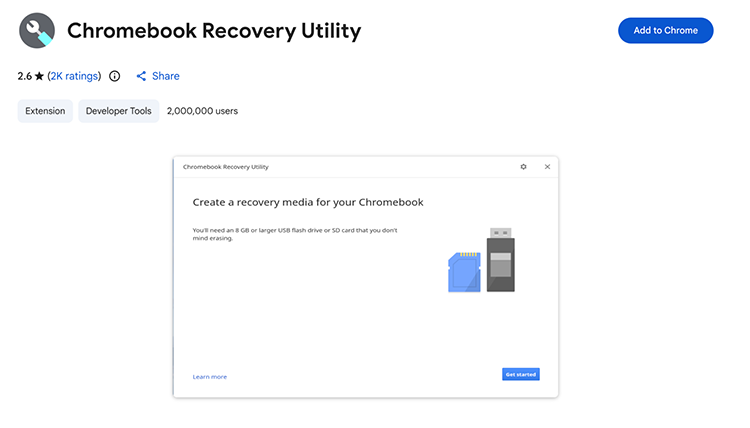
- Download ChromeOS Flex and write it to your USB drive.
- Run ChromeOS Flex from the USB without installing it first. Use it for a day. Try it on your machine before you wipe anything.
Option 2: Buy the $3 USB Kit
This option is for you if you’d rather not deal with option 1 described above. Google partnered with Back Market — a refurbished electronics marketplace — to sell a pre-made $3 ChromeOS Flex USB stick with setup guides and video walkthroughs included.
However, the first batch sold out fast. It launched as a pilot program with limited stock, so do check availability on Back Market.
Note: If you’re managing a number of older machines — a small office or a school — ChromeOS Flex supports Google Admin Console enrollment and mass deployment via USB. Google’s setup page has an assessment quiz that generates a personalized ChromeOS Flex compatibility device report. That’s where to start.
Will ChromeOS Flex work for you?
It depends almost entirely on whether you use installed software.
If your day is mostly browser tabs — Gmail, Notion, Slack in a browser, Google Docs, Netflix, Zoom — you probably won’t miss Windows. Some people switch and forget they switched.
This might not work out for you if you use software that only runs on Windows. Microsoft 365 works fine as a web app, but the desktop versions of Word, Excel, and Outlook just won’t install. Same with anything Adobe, any engineering software, any game that isn’t browser-based.
| What you do | Works on ChromeOS Flex? | DSaviour’s verdict |
| Email, browsing, YouTube | Yes | No issues at all |
| Google Docs / Sheets / Drive | Yes | Native to the OS |
| Zoom, Teams, Meet | Yes | Browser or PWA |
| Microsoft 365 (web) | Yes | Office.com works fine |
| Microsoft 365 desktop apps | No | Web versions only |
| Photoshop, Lightroom | No | Not supported |
| Steam / PC gaming | No | Not supported |
| Android apps | No | Chromebooks only, not Flex |
DSavior tip: Before you install anything, spend some time listing the specific apps you open each week. You’ll be surprised to find the list is shorter than expected, and most of it already runs in a browser.
What to Do Before You Install ChromeOS Flex
ChromeOS Flex installs over your existing OS. It wipes the drive. So, do not skip the backup step:
- Copy everything to an external hard drive or cloud storage. Documents, Downloads, Desktop — the folders people forget about are usually the important ones.
- Find your Windows product key if you think you might want to go back. It’s usually embedded in your device firmware, but tools like Belarc Advisor surface it clearly.
- Double-check your device against the Certified Models List. If it’s not on there, run it live from USB before a full install — you’ll find out quickly if something doesn’t work.
- Have your Wi-Fi password handy? ChromeOS Flex asks for it during setup and you’ll need it before anything else works.
That’s all the preparation you need. The install itself is easy once you’ve backed up.
Is ChromeOS Flex Worth It?
For a machine that’s otherwise headed for a drawer or a bin, yes. ChromeOS Flex is not a downgrade for the kind of person who mostly lives in Chrome anyway. It’s faster, more secure, and supported — which is more than Windows 10 can say right now.
For power users, creatives, gamers, or anyone with a workflow built around installed software — ChromeOS Flex specifically isn’t the fit.
FAQ
Unlisted devices can work, but Google won’t fix hardware-specific bugs — things like a Wi-Fi card not being detected or the trackpad behaving oddly. Boot from USB and test for an hour before doing anything permanent.
Yes. The full installation wipes your drive and replaces your OS. Back up before you start. If you just want to try it without committing, boot from the USB and don’t click Install — ChromeOS Flex runs live from the stick.
Yes, though it’s not automatic. You’d need a Windows installation USB and a valid license key. If your device came with Windows, the key is typically stored in the firmware and carries over fine. It’s worth noting it down before you start anyway.
The desktop versions don’t run on ChromeOS Flex. Microsoft 365 through a browser (office.com) works without issues. If your work depends on specific macros or templates, test those in the web version before switching — most work, some don’t.
