





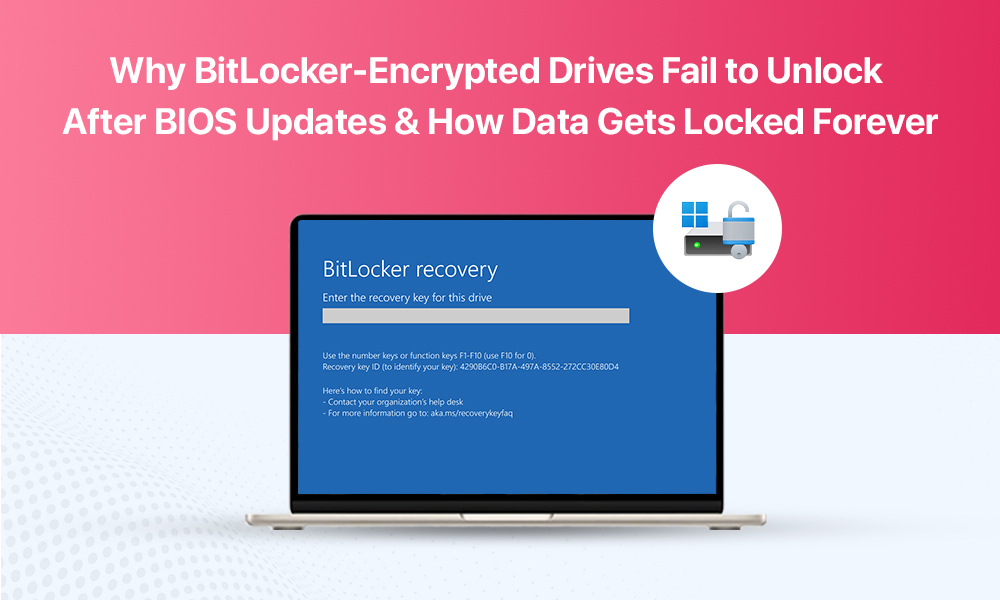
This guide explains why BitLocker asks for recovery key after BIOS updates, what triggers the lockout, what “recovery key required” actually means, and how to prevent the worst case scenario where your data is effectively locked forever.
When Security Turns into a Data Lockout
Here’s the situation: You update your BIOS for a valid reason. You reboot, and instead of Windows, you see a blue BitLocker recovery screen.
The problem is that many users do not realize a BIOS update can change the “identity” BitLocker uses to decide whether to unlock automatically.
How BitLocker Works in Plain English
BitLocker encrypts your drive using strong encryption (AES). That means the raw data on your disk is scrambled into unreadable noise unless Windows has the right keys to decrypt it.
To unlock your drive, BitLocker relies on something called “protectors.” Think of protectors as the allowed ways your PC can prove it’s you:
- A TPM (Trusted Platform Module) chip that validates your boot environment
- A PIN (often used on business laptops)
- A startup key stored on a USB drive
- A recovery key (the 48 digit code that is meant for emergencies)
On many modern Windows 11 systems, TPM based unlocking is the default. You do not type anything at startup because the TPM silently verifies that the boot process looks normal. If everything matches expectations, BitLocker releases the key and Windows boots.
If something looks different, BitLocker gets cautious. It stops automatic unlock and asks for the recovery key instead.
So the recovery screen usually means this:
“Your drive is fine. Your data is still there. I just cannot confirm this is the same trusted boot setup as before.”
How BIOS Changes Impact BitLocker Unlocking
| BIOS / Firmware Change | What Changes Internally | Impact on BitLocker | Likely User Outcome |
| BIOS or UEFI firmware update | Firmware code hash changes | PCR 0 and PCR 1 values no longer match | BitLocker requests recovery key |
| Secure Boot enabled or disabled | Boot trust chain altered | PCR 2 changes | Automatic unlock fails |
| Boot mode change (Legacy ↔ UEFI) | Bootloader behavior modified | PCR 4 mismatch | Drive remains locked |
| TPM reset or cleared | TPM ownership lost | Encryption keys orphaned | Recovery key required |
| CPU microcode update | Platform configuration changes | PCR measurements shift | Unexpected BitLocker recovery prompt |
| NVMe or storage controller firmware update | Storage initialization timing changes | Boot measurements differ | Drive flagged as untrusted |
| GPU settings change (Resizable BAR, PCIe config) | Hardware initialization order changes | PCR recalculation | BitLocker refuses auto-unlock |
| BIOS settings reset to default | Secure Boot, TPM, boot order altered | Multiple PCR mismatches | Recovery key loop |
Role of TPM, BIOS, and Secure Boot
TPM 2.0 is mandatory for Windows 11 BitLocker and functions as a hardware vault. It:
- Stores encryption metadata without exposing keys
- Measures boot chain integrity using PCRs (Platform Configuration Registers)
BIOS or UEFI firmware directly influences PCR values, including:
- PCR 0: Firmware measurements
- PCR 1: Host platform configuration
- PCR 2: Secure Boot policy
- PCR 4: Boot manager
- PCR 5 to 7: Boot applications and files
Secure Boot ensures only trusted, signed code runs during startup. Any BIOS change, including enabling TPM or switching boot modes, alters PCR hashes.
BitLocker expects PCR stability. When those measurements change, TPM denies automatic unlock.
What Changes During BIOS or Firmware Updates
BIOS updates rewrite firmware code, which causes widespread PCR changes:
- Firmware hash changes: PCR 0 and PCR 1 recalculate completely
- Default setting resets: Secure Boot, TPM version, boot order, or UEFI and CSM modes may change
- Microcode updates: CPU firmware patches modify platform configuration PCRs
- Bootloader behavior changes: Updated firmware timing or device initialization alters boot measurements
Why BitLocker Recovery Keys Stop Working
This is the most painful part. Recovery keys can fail too.
Common reasons include:
- Multiple protectors: Drives protected by TPM plus PIN and recovery key may still fail if metadata is damaged
- Key entry errors: Long keys mistyped during stress, or Microsoft account access blocked by 2FA issues
- Drive metadata damage: Firmware updates corrupt BitLocker metadata stored at the beginning of the drive
- TPM ownership reset: BIOS updates can clear TPM ownership, orphaning encryption keys
- Secure Boot mismatches: Changes invalidate the expected recovery environment
Microsoft confirms that after PCR changes, only the correct 48-digit recovery key will work. Without it, data is inaccessible.
Common User Mistakes And What to Do Instead
1. No recovery key stored or verified
- Save the key in at least two places (printout, password manager, secure file storage)
- Confirm you can actually access it before doing anything risky
2. Updating BIOS without suspending BitLocker
- Suspend BitLocker before a BIOS update, then resume it after the update is confirmed stable
- If you manage devices in an org, make this part of your standard BIOS update checklist
3. Relying solely on Microsoft account access
- Treat Microsoft account storage as one backup location, not the only one
- Make sure you can access the account and confirm the key is actually there
4. Entering incorrect recovery keys repeatedly, triggering time delays
- Slow down and match the recovery key to the correct device ID shown on the BitLocker screen
- Copy-paste the key when possible, instead of typing from memory or a blurry photo
- If you have multiple keys, label them clearly by device name and date
5. Using untrusted unlocking tools
- Stick to official recovery paths
- If you need professional help, use a reputable recovery provider, not random software
6. Attempting factory resets or OS reinstalls
- Focus on retrieving the recovery key first
- Only reinstall once you accept that the data is not recoverable or is already backed up elsewhere
Important reminder: Never update BIOS on a BitLocker-encrypted system without preparation.
Can Data Be Recovered After BitLocker Lockout?
Short answer: rarely, and at high cost.
Possible options include:
- Entering the correct recovery key if it exists
- Enterprise recovery through Active Directory or managed environments
- Forensic services that extract encrypted data without the ability to decrypt it
Without a valid recovery key, BitLocker encryption cannot be bypassed. The data remains encrypted by design.
What To Do Right Now If You’re Stuck on the Recovery Screen
If you are already staring at the BitLocker recovery prompt, here’s the calm checklist:
- Look closely at the recovery screen for the “Recovery key ID.” It is not the whole key, but it helps you match the correct key in your account records.
- Try to retrieve the key from wherever it might be backed up:
- Your Microsoft account (if you used one on that PC)
- Your organization’s IT (if this is a work device, keys may be stored in directory services or management tools)
- A printed copy you saved
- A USB file you exported earlier
- Enter the key carefully. Take your time.
- Once you get in, do not keep rebooting until you stabilize the system:
- Confirm BitLocker status
- Confirm your recovery key backup is correct and current
- Consider suspending BitLocker temporarily if you plan more firmware changes
If the key you have does not work, do not assume BitLocker is broken. Assume you have the wrong key.
Preventive Steps Before BIOS Updates
If you want to avoid this situation entirely, use this checklist before any BIOS or firmware update:
Step 1: Confirm you have the recovery key
Do not trust “I’m sure it’s saved somewhere.” Actually confirm it.
Save it in at least two places:
- A secure password manager note (not a random text file on the same PC)
- A printed copy stored safely
- A secure cloud note that you can access from another device
Step 2: Suspend BitLocker before the update
Suspending BitLocker tells Windows: “I am about to change system measurements, do not lock me out.”
This is the single most important step for BIOS updates.
Suspension is temporary and does not decrypt your drive. It simply stops BitLocker from enforcing TPM checks for the next reboot cycle.
Step 3: Do the BIOS update
Update using your vendor’s recommended method. Keep the device plugged into power. Do not interrupt the process.
Step 4: Boot back into Windows and resume BitLocker
Once you confirm Windows boots normally, turn BitLocker protection back on. Then reboot once more to ensure everything is stable.
Step 5: Avoid firmware setting changes right after the update
If your BIOS update resets settings, do not start flipping switches randomly. Restore settings carefully, especially Secure Boot and TPM options. Each change can trigger a recovery prompt.
Optional step: enable additional authentication at startup for PIN-based recovery.
Conclusion
BitLocker combined with BIOS updates can create a perfect storm where security turns into data loss. The feature works exactly as designed, but only when users follow the required preparation steps.
In today’s time, BitLocker remains one of the strongest disk encryption tools available. It protects your data completely, but only if you respect how it works. Prevention is not optional. It is the difference between a routine update and permanent loss.
