





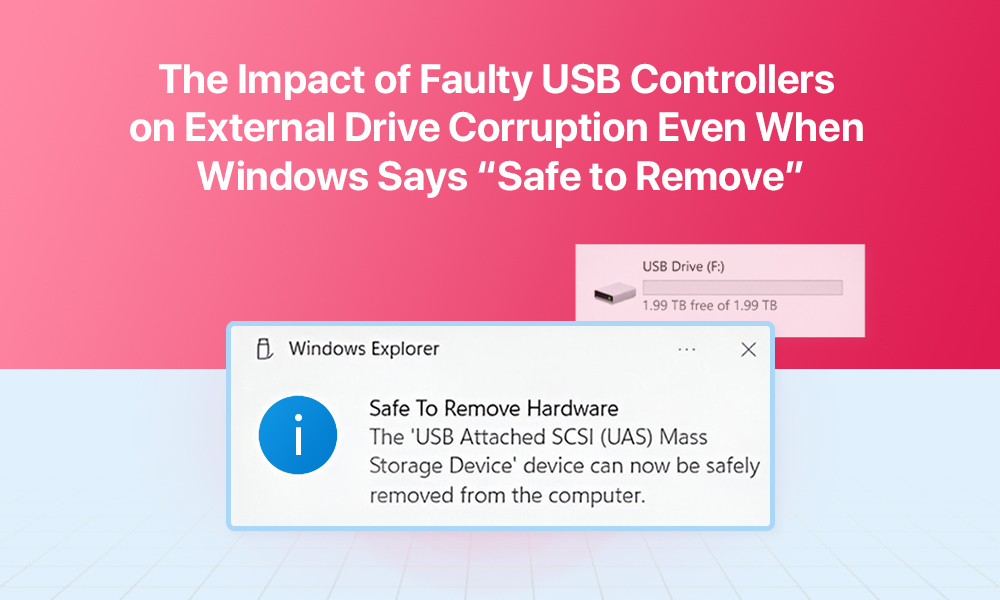
External drives feel like insurance. You plug in your portable HDD or SSD, drag over your photos, videos, or backups, click “Safely Remove Hardware,” wait for that reassuring little green checkmark, and unplug the cable thinking, okay, we’re good.
And most of the time, you are.
Until a few days later. You double-click a folder and it opens… but shows 0 KB.
One possible culprit is something most people never think about: the USB controller.
This small piece of hardware sits between your computer and your external drive and decides how data actually moves. When it misbehaves, it can corrupt data even after Windows has given you the green light.
This guide explains in simple language:
- What a USB controller does
- How it can corrupt data even when you eject drives safely
- Warning signs something is wrong
- Practical habits and hardware choices that can protect your files
Why “Safe to Remove” Is Not the Whole Story
The “Safe to Remove Hardware” message is easy to trust. It feels like a guarantee that everything is written and safe.
In reality, it only tells you one thing:
Windows has finished sending data and has closed its side of the connection.
It does not guarantee that:
- Your USB port finished its work
- The USB hub or adapter in between behaved properly
- The controller inside your external drive has written everything to the disk or SSD chips
Between your computer and the storage inside your external drive, there are several layers:
- Windows and its file system
- The USB host controller on your motherboard or laptop
- Any hubs, docks, or extension cables
- The USB controller inside the external enclosure
- The actual drive (HDD or SSD) and its own cache
If any of these pieces are slow, buggy, overheated, or failing, data can still be “in flight” even after Windows says it is safe. That is how you end up with empty folders, partial files, or corrupted partitions days after what looked like a clean unplug.
What a USB Controller Actually Does
A USB controller is like a translator and traffic manager between your PC and the external drive. It handles:
- Negotiating the connection speed (USB 2.0, 3.0, 3.2, etc.)
- Managing how data is packaged into chunks and sent over the cable
- Confirming that those chunks arrive in one piece
- Controlling power delivery and low power states
- Passing read and write requests on to the actual drive electronics
There are two main controllers involved:
- The host controller inside your computer’s motherboard, laptop, dock, or hub
- The device side controller inside the external drive or its enclosure
Both sides can have small amounts of memory that temporarily hold data (buffers). When you copy files, data moves in steps:
PC memory → USB host → cable → device controller → drive cache → physical media
At several points in that chain, the system might say “done” to the step above it while still quietly working on the step below. This layered approach makes transfers faster and more efficient. It can also hide problems until it is too late.
What Goes Wrong With Faulty or Aging Controllers
A USB controller does not have to fail completely to cause trouble. Small, silent problems are often the most dangerous.
Here are some common failure patterns:
- Heat damage over time
Laptops that run hot, enclosures with poor ventilation, or ports near exhaust vents can slowly cook controllers. After enough heat cycles, the chip can start behaving unpredictably. - Low quality hubs and docks
Cheap multi-port hubs might promise USB 3 speeds but use poor quality components. Under heavy load, they can drop the connection for a split second, starve the drive of power, or mishandle data. - Flaky cables or connectors
Frayed cables, loose ports, or bent pins do more than just disconnect. They can introduce electrical noise that forces the controller to guess at what was sent. - Firmware issues
Some enclosures ship with immature or buggy firmware. In certain edge cases, they may send a “write complete” signal before the drive has actually finished saving the data.
The scary part is that you often do not see the problem immediately. Instead, you notice it later when:
- A video stops halfway through
- An archive fails to unzip
- A backup refuses to restore
- Windows insists the drive must be scanned or formatted
How Write Caching Makes Corruption More Likely
To speed things up, both Windows and your drives use write caching. That means data is held temporarily in memory before it is written to the physical drive.
There are three main caching layers:
- Windows cache in system RAM
- USB controller cache inside the enclosure
- Drive cache on the HDD or SSD itself
When you click “Safely Remove,” you are telling Windows to:
- Stop accepting new writes to that drive
- Flush whatever it has in memory to the USB stack
- Close open file handles
Your computer then says “safe to remove,” because its part of the job is done.
But here is where the problem appears:
- The USB controller and the drive itself may still be finishing their own cached writes
- A faulty controller may claim it has written everything even if it has not
- If you unplug immediately, the tail end of that data stream may never reach the platter or SSD cells
The result can be:
- Files showing 0 KB
- Corrupted headers in video files that make them unplayable
- Damaged file system structures that force Windows to run repair tools
This is why many professionals follow an extra rule of thumb:
wait a few seconds after the “safe” message before physically unplugging, especially after large transfers.
Real-World Examples of Controller Related Corruption
Here are a few realistic scenarios that illustrate how this shows up in daily life.
| Example 1: A Photographer’s Backup Drive | Example 2: A Video Editor’s Portable SSD | Example 3: Backup That Is Not Really a Backup |
| A photographer copies an entire weekend shoot to an external hard drive through a cheap USB hub. The copy looks fine. Windows says it is safe to remove. They pack the drive for a client trip. Later, on another computer, some folders appear empty or with slightly smaller file sizes. A few RAW files refuse to open. The drive itself tests fine, but the hub’s controller was dropping or delaying data under heavy load. | A video editor exports a final cut directly to a fast external SSD. After the export finishes and Windows reports a safe removal, they quickly unplug and move to another workstation. On the next machine, the file exists but video software throws an error. The header of the file is damaged. The SSD enclosure’s controller acknowledged the write, but internal caching had not fully finished writing to the flash memory when the drive lost power. Here are a few examples that mirror what many users experience in real life. | Someone uses a USB hard drive as their only backup. They run copy jobs every weekend. After a while, Windows keeps asking to scan and repair the drive each time it is plugged in. The built-in USB controller on the computer’s motherboard is starting to degrade, occasionally resetting under load. Each reset interrupts writes in progress and slowly chips away at the integrity of the backup drive’s file system. By the time they really need that backup, some of the critical files are already damaged. |
Warning Signs Your USB Path Might Be Unreliable
You do not have to wait for a disaster to suspect something is off. Watch for these early hints:
- Drives disconnect randomly while copying files
- Copy dialogs freeze or take much longer than they should
- You see frequent “scan and repair drive” prompts when plugging in externals
- Transfer speeds swing wildly, for example from 400 MB/s down to 40 MB/s without a clear reason
- Certain USB ports on your machine are much less reliable than others
- Enclosures or hubs feel very hot to the touch during use
You can also run simple tests:
- Try the same drive on a different USB port or on another computer
- Avoid hubs and plug directly into the machine to see if behavior improves
- Benchmark speeds gently and see if results are stable rather than jumping around
If problems vanish when you change the port, cable, or hub, the USB path you were using is not fully trustworthy.
Best Practices For Heavy Data Users
If you work with important data regularly, it is worth tightening your habits even more.
- Follow the 3-2-1 backup rule
Keep at least three copies of important data, on two different types of media, with one copy stored off site or in the cloud. - Verify key transfers
For mission critical files, use copy tools or workflows that support verification. This compares the original and copied file to confirm they match. - Label your gear
If you discover that certain ports, hubs, or cables are perfectly reliable, and others are flaky, label them. Use the reliable ones for backups and active projects. - Monitor temperatures
Small SSD enclosures can run hot. If your drive or enclosure is too warm to touch, consider giving it breaks between large transfers or improving airflow. - Retire suspicious hardware early
If a hub, cable, or port starts acting unpredictably, do not keep using it “just one more time.” It only takes one bad session to corrupt the wrong file.
Conclusion
The “Safe to Remove Hardware” only confirms that Windows has finished its side of the conversation. It does not watch what your USB controller or external enclosure does next.
Faulty or aging USB controllers, low quality hubs, and unstable connections can quietly damage data even after a proper eject. That is why people who rely on external drives for work treat the whole USB path with respect, not just the operating system.
If you:
- Use decent hardware
- Plug in directly where you can
- Give drives a few extra seconds after eject
- Keep backups and occasionally verify them
you dramatically reduce your risk of silent corruption.
In short, trust the green icon as a starting point, not a promise. Your files are worth that extra bit of care.
