





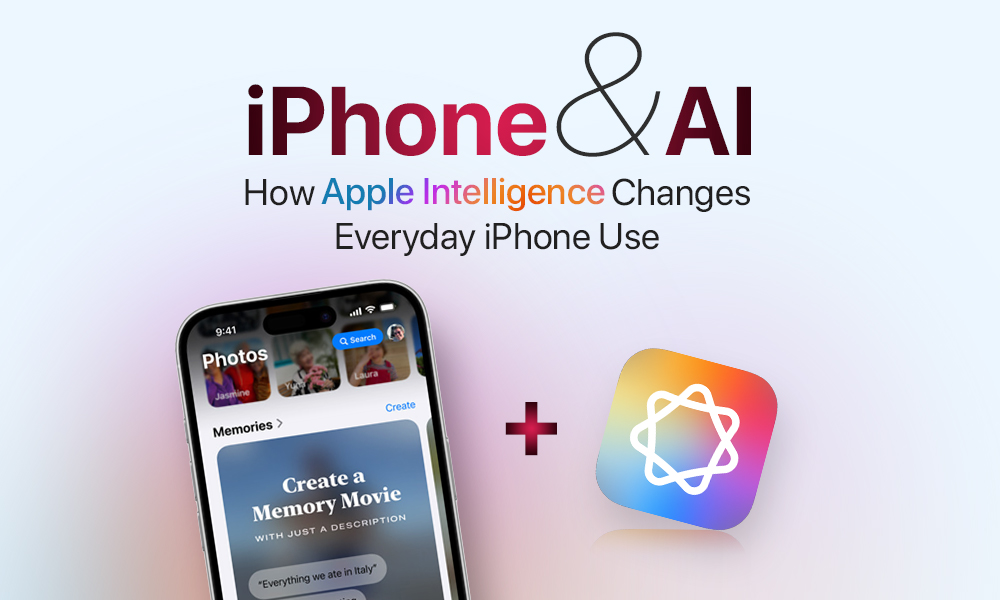
Artificial intelligence is now part of the iPhone in a quiet, useful way. With iOS 26, Apple rolled out Apple Intelligence, a set of features that lives inside the apps you already use. Messages, Mail, Photos, Notes, and Siri feel more capable, yet your data stays private. Instead of a flashy chatbot, Apple focused on context, privacy, and simple time-savers that remove small annoyances from your day.
This guide explains what Apple Intelligence is, how it works, where you will notice it, and how to get real value from it. If you want to know whether this changes how you use your phone, start here.
What Apple Intelligence Actually Is
Apple Intelligence is a bundle of language, vision, and automation tools built into iOS, iPadOS, and macOS. The goal is straightforward. Help you read, write, find, and finish tasks faster, while keeping your personal data under your control.
How it works behind the scenes:
- On device models handle common jobs. That includes summarizing a long message thread, suggesting a reply, cleaning up a photo, or rewriting a draft for clarity. Since these run on Apple silicon, they are quick and private.
- Private Cloud Compute helps with heavy requests when local processing is not enough. Your phone sends only the minimum data needed. It is encrypted, processed on Apple controlled servers, and then deleted. Results come back to your device. Nothing is kept for advertising or model training.
- Context awareness keeps results personal without being invasive. Intelligence pulls from calendars, notes, photo metadata, and other items already on your device. That context stays on your device unless a specific task needs the private cloud path.
The promise is practical. Help that feels tailored to you, with privacy set to on by default.
What You Can Do Right Now
You will not find a separate Apple Intelligence app. Features appear exactly where you expect them.
Writing and language tools
- Summarize long emails, busy group chats, articles pasted into Notes, and meeting notes.
- Rewrite text to be clearer or friendlier. Pick a tone, accept the draft, and make quick tweaks.
- Smart replies offer short responses that match your voice.
Image and visual tools
- Image Playground creates simple illustrations for messages, lists, and banners. Think quick visuals for birthdays, trip planning, or team updates.
- Genmoji turns brief prompts into one off emoji style graphics.
- Photo cleanup removes small distractions such as power lines or passersby. The goal is subtle edits that do not look artificial.
Audio, translation, and recognition
- Live translation works in Messages, FaceTime, and with supported AirPods. Two people can speak in different languages and follow the conversation.
- Visual lookup identifies objects, text, and links inside photos and webpages. Tap to copy a tracking number, open a map from a sign, or learn more about a plant.
Siri, with better context
Siri is more aware of who and what you mean. Try, “Show me photos from the birthday dinner in Goa” or “Summarize my unread emails.” For open ended creative prompts, you can allow Siri to route a request to an external model. Your personal context is not shared in that handoff.
Privacy, Explained Simply
Apple uses a hybrid approach to keep tasks fast and private.
- Local first: If your iPhone can process it on device, it will. That covers most summaries, tone edits, photo cleanup, and smart replies.
- Private Cloud Compute for heavy lifting: If a task is too large, the request goes to Apple’s controlled servers. Data is encrypted, used for that single task, and then deleted. You can review activity in Settings.
- No marketing tradeoffs: The system is designed so your personal content is not repurposed for ads or public training sets.
If you like the idea of helpful AI but worry about privacy, this model is likely to make you comfortable using it every day.
Where You Will Notice the Difference
Below is a quick reference you can copy into a doc or share with your team.
| Area | What you will see | Why it helps |
| Messages | Thread summaries, suggested polls, quick replies, simple banners from Image Playground | Skim long chats, plan faster, keep group conversations on track |
| Highlights at the top of new emails, tone rewrite, natural language search | See action items at a glance, sound professional, find messages without perfect keywords | |
| Photos | Cleanup for small distractions, smarter search by theme, quick memory reels | Share cleaner shots, find moments by idea not filename, create short stories easily |
| Notes | One tap summaries, auto formatted bullets, better structure for long notes | Turn raw notes into clean outlines, prepare meeting recaps quickly |
| Siri | Context aware requests, summaries on demand, optional handoff for creative prompts | Fewer taps, faster answers, less app switching |
| Shortcuts | Intelligent steps chained together, for example summarize → draft → schedule | Automate daily wrap ups and follow ups with one trigger |
Performance and Limitations to Expect
What already feels great
- Summaries are quick and usually capture the point.
- Tone edits make messages clearer without sounding robotic.
- On recent devices there is almost no lag for local tasks.
What still needs time
- Image Playground is fun, but not as varied as specialist art tools.
- Tone rewrites can lean a bit formal. A small tweak usually fixes it.
- Full features require newer hardware. Older devices get fewer tools and slower processing.
If you need advanced design, deep research, or coding help, you will still use a dedicated AI app. If you want day to day time savings on your phone, Apple Intelligence is a strong fit.
How It Compares to Other AI Ecosystems
- Google Gemini aims for broad creativity and search reach across web and Android.
- Microsoft Copilot shines inside Office and Windows for documents, spreadsheets, and meetings.
- ChatGPT is a versatile generalist and great for ideation and code, although it lives fully in the cloud unless you configure special privacy settings.
- Apple Intelligence sits quietly inside iOS and macOS where you already work. Its strength is trust, context, and tight integration, with the tradeoff that it is designed for Apple devices first and foremost.
Tips to Get More Value on Day One
- Use summaries everywhere: Group chats, long emails, and pasted articles are perfect.
- Set a default tone: Pick the voice you want for common replies, such as concise for work or friendly for community groups.
- Edit photos lightly: Remove the wire or stray person, then stop. Natural beats over-processed.
- Build one daily shortcut: A simple “Wrap up my day” that summarizes notes, drafts a recap email, and schedules tomorrow’s focus time can save minutes every afternoon.
- Adjust visuals for comfort: If the Liquid Glass look in iOS 26 feels too transparent, switch to the Tinted option and enable Reduce Motion.
Small habits make the features feel second nature within a week.
Real Examples From Everyday Routines
Morning catch up
Open Mail and skim Highlights to see what matters. Use rewrite to send a clear two sentence reply. Ask Siri to block 30 minutes on your calendar to review attachments later.
Trip planning with friends
Drop a poll into the group chat and add a simple Image Playground banner so the thread stands out. Intelligence will keep a quick summary at the top as the chat grows.
Event photos made tidy
Pick the best ten shots, remove a sign or a wire with cleanup, and create a short memory reel. Share a link instead of sending a dozen images.
Meeting notes into actions
Record a short voice note in Notes. Tap to summarize, then convert to bullet points. Use a Shortcut that drafts an email recap and schedules a follow up.
Who Benefits the Most
- Busy professionals who live in email and meetings. Summaries and tone tools cut noise and speed up responses.
- Parents and organizers who manage group plans. Polls, summaries, and clear visuals keep everyone aligned.
- Students and self-learners who take lots of notes. One tap summaries and clean outlines make study sets easy.
- Creators and small teams who want light image help and faster writing, without moving private work to external services.
If your work leans heavily on design, code, or research, you will pair Apple Intelligence with a specialist AI. If you want a calmer, more helpful phone, you will feel the upgrade immediately.
Setup Checklist Before You Dive in
- Check device support: The best experience is on recent iPhones and iPads with the latest chips. Older models will have fewer features.
- Review privacy settings: Go to Settings, then Privacy, then Apple Intelligence. See what runs on device, what can use Private Cloud Compute, and review activity.
- Update your apps: Keep Apple apps and your key third party apps current so writing tools and summaries show up where you expect them.
The Bottom Line
Apple Intelligence does not try to replace your thinking. It trims steps and reduces friction. It helps you read faster, write clearer, find the right photo, and complete small tasks without jumping between apps. Most of it runs right on your device, and anything heavier uses a private path that is designed to protect your data.
If you want an iPhone that feels calmer, more personal, and a little bit smarter in the moments that count, this update delivers. The best part is how quickly it fades into the background. You will simply notice fewer taps, cleaner messages, and a little more time left in your day.
Frequently Asked Questions
It is enabled with iOS 26, but certain features require toggles or permissions the first time you use them. Follow the prompts and you are set.
Local tasks are tuned for efficiency. Heavy requests scale down in Low Power Mode. In daily use, most people do not see a meaningful battery hit.
On device tasks never leave your phone. When the private cloud is needed, the request is encrypted, processed, and deleted. Results return to your device. You can review activity in Settings.
Yes. Many people keep ChatGPT, Gemini, or Copilot for open ended creativity, coding, or research. Think of Apple Intelligence as the day to day assistant inside your phone, not a replacement for every AI task.
