





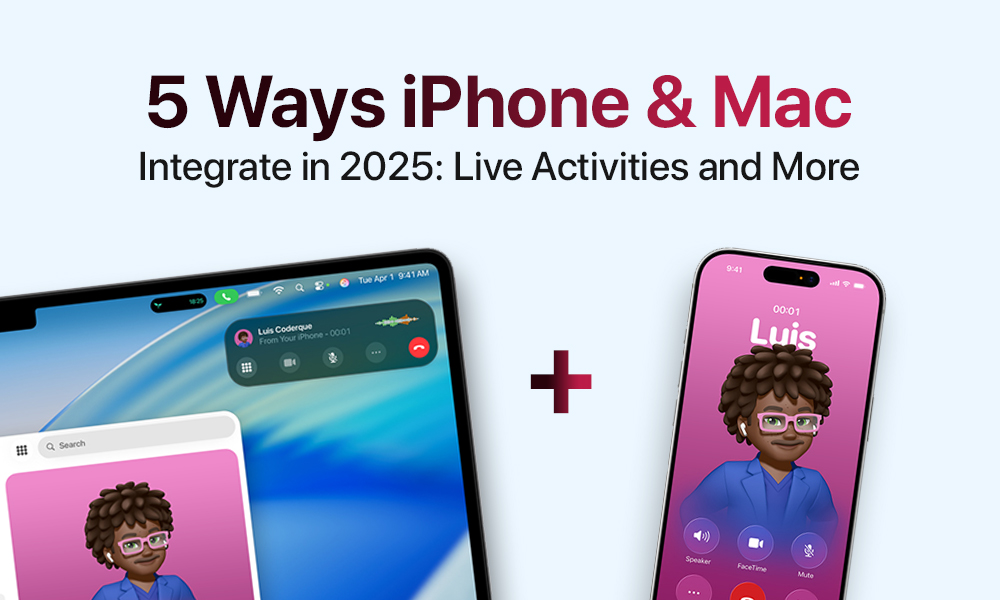
Apple has maintained its position as the leader in device integration since its inception, but the company took this concept to a new level of perfection during 2025. The iPhone and Mac devices achieve complete integration through their combined features, which include Live Activities, Universal Clipboard, and the new Phone application for Mac. The system enables users to track deliveries, switch between projects, and receive calls through a seamless transition between different screens.
Why Integration Has Become Essential
The connection between iPhone and Mac devices has evolved from being a premium feature to becoming an absolute necessity. Apple enables real-time cross-device syncing, allowing users to start notes on Mac computers, monitor phone orders directly from their desktops, and instantly transfer text between devices. The system provides more than just practical benefits because it transforms how people from all walks of life maintain their relationships and work efficiently.
Live Activities: Real-Time Updates on Every Screen
Live Activities are interactive updates from your iPhone apps that now show up directly on your Mac – right in the menu bar, lock screen, or widgets in macOS Tahoe. Think ride-sharing ETAs, delivery progress, or live game scores – all updating automatically without needing to reach for your phone.
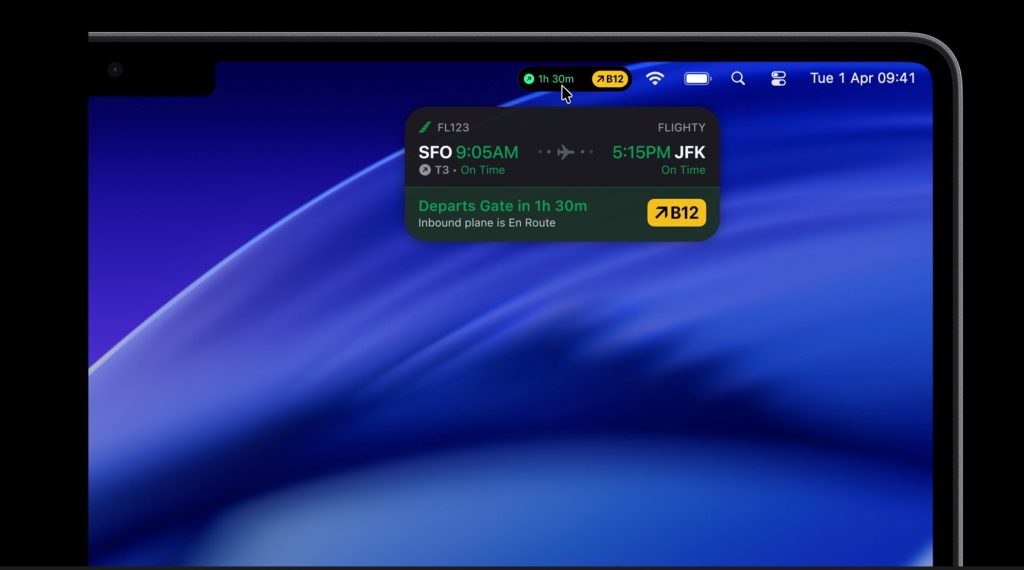
How Do Live Activities Sync Between Devices?
The system requires macOS Tahoe 26 and iOS 18 or later versions with an Apple ID account that matches both devices. The System Settings enable notification syncing and Live Activity sharing, which allows compatible apps, including Uber, DoorDash, and airline applications, to show real-time updates on both devices.
Everyday Use Cases
- Deliveries. Watch your package status update as it moves.
- Sports. Keep scoreboards visible while you work.
- Travel. See flight changes or train arrivals at a glance.
You can even click on a Live Activity on your Mac to open iPhone Mirroring – giving you full access to the original iPhone app right on your desktop.
Limitations and Tips
Not all apps support Live Activities yet, though more are adding support monthly. Some system features (like timers) may not sync. In the EU, certain features could roll out later due to regulations. Always keep your OS updated to avoid compatibility issues.
Continuity and the All-New Phone App on Mac
The Continuity features from Apple now provide users with enhanced power and better device connectivity. The following features are part of this system:
- Handoff. Users can pick up their work by accessing their email messages, documents, and Safari tabs across all their available devices.
- AirDrop. Instantly share files, links, or photos.
- Continuity Camera. Use your iPhone as a webcam or scanner.
- Universal Clipboard. Copy anything on one device, paste it on another.

The New Phone App: Calling Made Simple
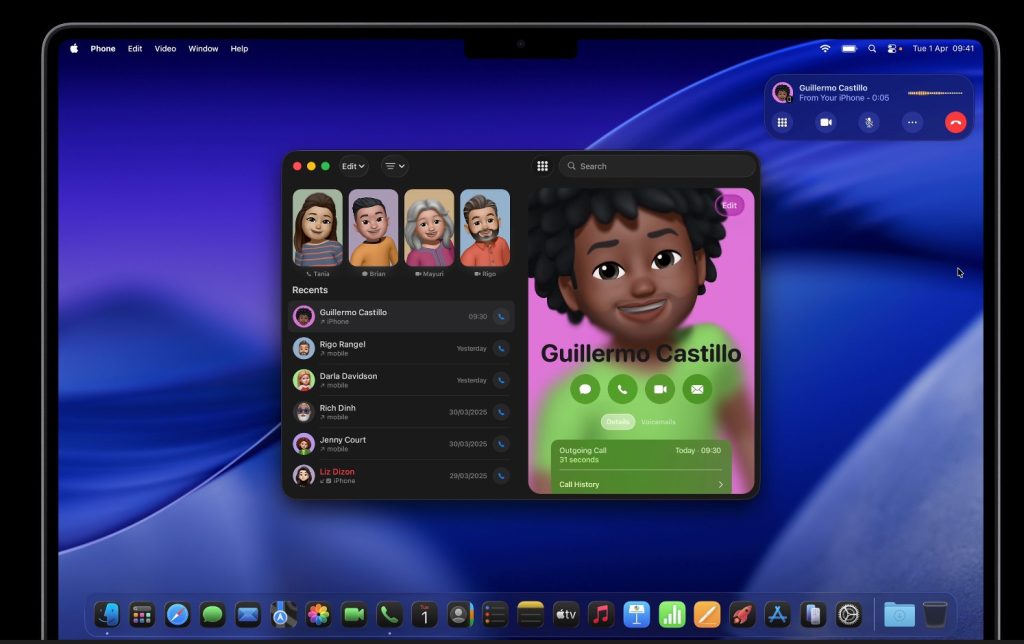
The new Phone app in macOS 26 changes how calls work on your Mac. It doesn’t just forward calls anymore – it mirrors your iPhone’s entire phone experience. You can:
- Make and receive calls through your iPhone’s connection.
- Check recent calls, voicemails, and contacts directly on your Mac.
- Use your preferred audio device, including AirPods or external speakers.
How to start using the Phone App:
- Use the same Apple ID on both devices.
- Check the Wi-Fi and Bluetooth connection.
- Open the Phone app on your Mac.
- If it’s missing, go to System Settings > Apple ID and toggle on “Allow Phone Calls on Mac.”
Universal Clipboard: Copy-Paste Without Limits
Universal Clipboard enables users to copy text, images, and even videos on one device – and instantly paste them on another.
How to Set It Up
Make sure both your iPhone and Mac are:
- Updated to the latest versions (Sierra/iOS 12 or newer).
- Using the same Wi-Fi network.
- Signed in with the same Apple ID.
- Bluetooth and Wi-Fi enabled – and both devices unlocked.
How it helps you work faster:
- Research. Copy a quote from your phone, paste it straight into Notes or Docs on your Mac.
- Creative work. Take a quick photo and drop it into a design app without exporting.
- Remote work. Move links or passcodes instantly between devices.
5 Best Continuity Mac Features
The Continuity suite from Apple creates a unified system between your iPhone and Mac through its seamless integration. The system operates without interruption, maintaining task connectivity and workflow continuity through its background operations.
1. Handoff
Start an email on your iPhone, finish it on your Mac – or continue reading a Safari article seamlessly. More third-party apps now support this fluid workflow.
2. AirDrop
Apple’s gold standard for quick sharing still reigns. You can transfer a presentation, document, or photo. AirDrop is fast, reliable, and perfect for teamwork.
3. AirPlay
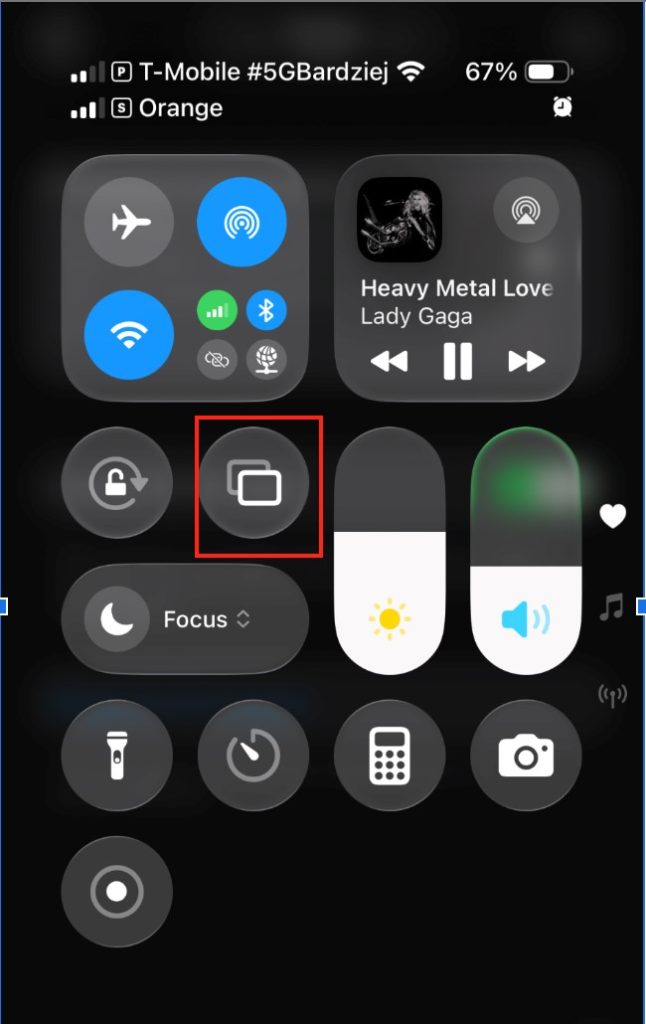
AirPlay on Mac enables instant display of iPhone content on any screen, which aligns with Apple’s “any screen, any time” concept in a straightforward manner.
4. Continuity Camera
The iPhone camera can be used as a webcam with higher quality. Just select your iPhone from the Mac’s camera menu. The setup is not needed. Features like portrait and ultra-wide modes make your video calls look professional.
5. iPhone Mirroring & Widgets
macOS 26 introduces full iPhone Mirroring, letting you use your iPhone right on your Mac screen.
You can also pin iPhone widgets directly onto your Mac desktop for a unified view of your day.
Privacy and Reliability at the Core
The increasing connection between Apple devices maintains privacy and security as their primary focus. The development team implements built-in encryption and strong security measures throughout all features, which enable iPhone and Mac connections.
- Your photos, documents, and messages receive complete end-to-end protection through iCloud encryption.
- The personal data stays on your device through on-device AI because it prevents any cloud-based data sharing.
- The system includes parental control features and authentication tools that protect both individual user accounts and family account security.
- The integration is provided through multiple security layers. It ensures complete trustworthiness.
Tips to Maximize Your Cross-Device Workflow
The Apple ecosystem becomes more efficient through implementing several basic routines. Your devices need to stay connected while being updated and organized to achieve the smooth operation Apple designed.
- The system delivers new features and performance improvements through its scheduled update process.
- The operation of most cross-device features depends on Bluetooth and Wi-Fi functionality, so users should keep these features active.
- You can access all their calls, reminders, and app updates through the widgets and Notification Center interface.
- The automated workflows can be created through Shortcuts to link different device functions. It speeds up app operations, file access, and email composition and reminder setup.
Conclusion
Today, Apple’s ecosystem feels more unified than ever. From Live Activities that bring updates to your desktop, to Universal Clipboard for instant sharing, and the new Mac Phone app that turns your Mac into a communication hub – Apple’s devices now function as one. Whether for work, study, or personal life, the iPhone-Mac connection has never been this seamless.
