





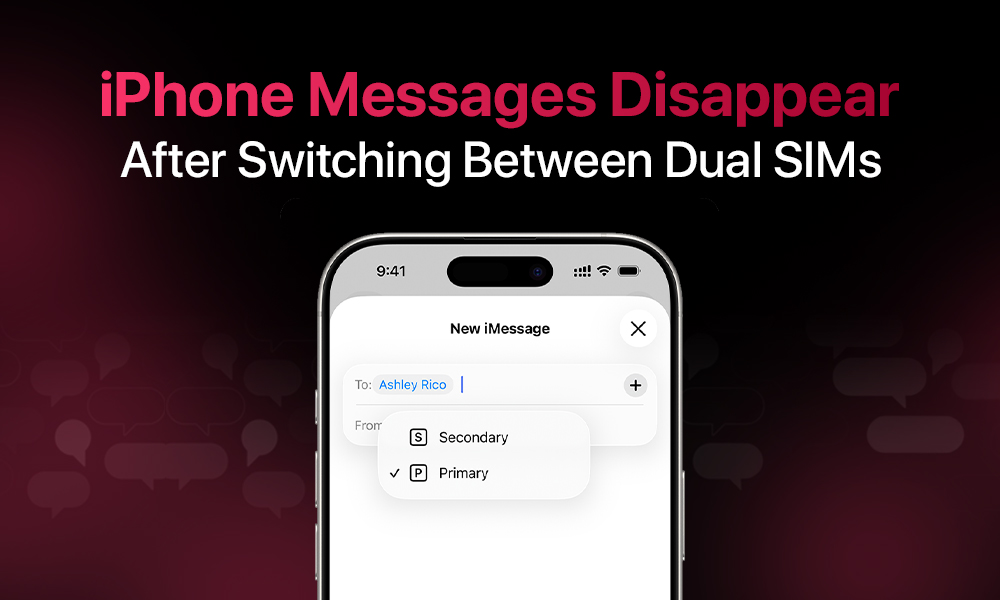
iPhone users with dual-SIM or eSIM profiles can benefit from running two phone numbers on a single device. This is useful for having separate numbers for work and personal life, as well as for having multiple local and travel phone lines. The ability to switch between phone numbers leads to a common problem where messages become inaccessible.
We’ll explain here what happens to your messages when you switch between profiles or disable a line and, of course, provide solutions for this issue. Let’s dive in!
How dual SIM works in 2026
Your iPhone uses two phone numbers simultaneously. This means you can call, text, and use iMessage with both of your numbers. Your iPhone treats each line as a separate messaging channel.
The following explains how dual SIM works:
- Each phone line has its own unique phone number. It allows you to send SMS/MMS messages and use iMessage.
- When you send the first message in a conversation, it links that entire conversation to the phone line you used.
- You can’t change an ongoing conversation to a different line. Each new message from another line starts a new conversation thread.
- The messaging app looks like it has one interface, but your device actually has two separate messaging accounts. And this can be quite confusing.
Why messages seem to “disappear” when you switch profiles
The most common complaints come from users who:
- Turn one line off for a while
- Switch the primary line for voice or data
- Swap between eSIM profiles (for example, home vs. travel).
From the user’s perspective, messages are missing or never show up. What’s usually happening behind the scenes falls into a few patterns.
Quick Immediate Fixes for Missing Messages
1. Toggle iMessage and FaceTime Off and On
Here’s how to proceed:
- Turn off both services in Settings
- Restart your iPhone completely
- Reactivate it
- Wait at least 24 hours before switching lines again, as iMessage requires time to properly activate and synchronize with Apple’s servers.

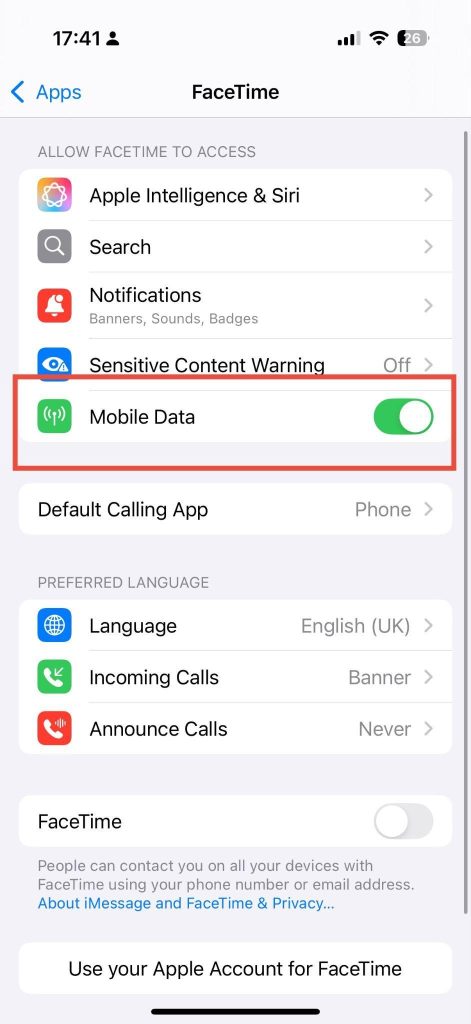
2. Verify “My Number” Is Set
Go to Settings > Mobile Service > Mobile Data > tap each SIM profile > My Number. Ensure your phone number appears for both lines. If the field is blank, add it manually. This is essential for iMessage recognition.
3. Check Send & Receive Settings
Here’s how:
- Navigate to Settings
- Go to Messages
- Look for Send & Receive
- Confirm that both phone numbers are registered and checked.
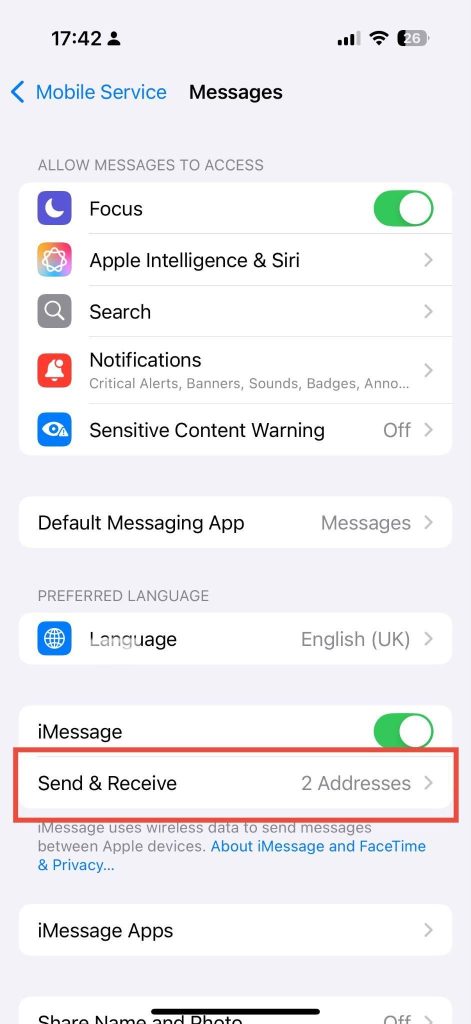
If either number shows a spinner or loading icon, leave it for 24 hours before attempting to switch profiles again.
4. Ensure SMS Functionality on Both Lines
iMessage can’t be activated without SMS capability. You should verify SMS functionality with your carrier for both your physical SIM and eSIM because data plans don’t automatically enable SMS functionality. You need to contact your carrier to confirm they performed a proper SIM swap rather than creating a new eSIM profile after your recent eSIM transition.
Prevention Strategies for Switching Profiles
1. Keep Both Lines Active Whenever Possible
Instead of disabling a line, simply leave both lines turned on and switch the active data line instead. This ensures both SIMs maintain network registration and can receive incoming messages without delay.
2. Set Default and Preferred Lines Strategically
Configure Settings > Mobile Data > Default Voice Line to your primary number, then set Preferred Line on individual contacts for the secondary SIM. This reduces the likelihood of messages being routed to the wrong line during switching.
3. Manually Select the Sending Line for Each Conversation
When starting a new message thread, tap the line label above the keyboard before typing to ensure the message sends from your intended SIM. For existing conversations, open the contact name/photo at the top of the conversation to change the active line.
4. Separate iMessage/FaceTime from Your Travel Line
When using a travel eSIM, keep iMessage and FaceTime linked to your home number while using the travel line only for data and local SMS. This way, your contacts stay connected by letting iMessage users reach you, while you can also chat with local people using your secondary SIM.
4 More Fixes for Disapperaing Messages with Dual Sim
If messages still keep disappearing from your iPhone, do this:
- Reach out to your carrier: Users who need to change between eSIM profiles must reach out to their carrier to obtain a fresh eSIM QR code instead of using their present code. Delete the old eSIM that might not be working and set up the new one from scratch – this resolves instances where the original activation didn’t properly configure SMS functionality.
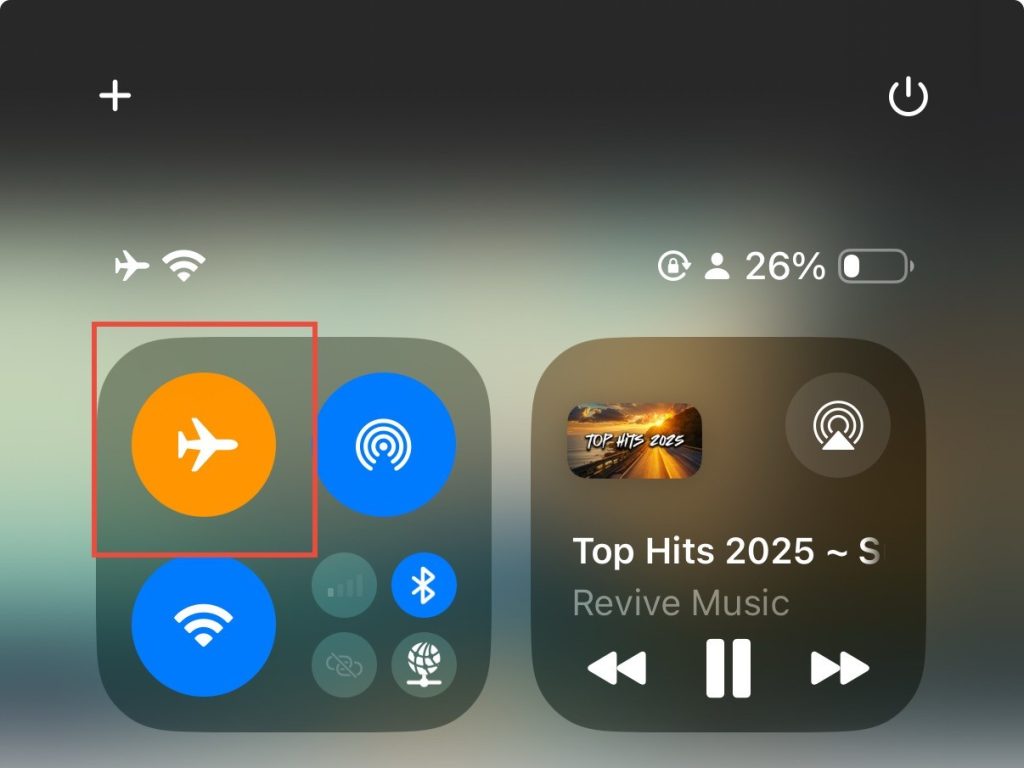
- Do a long Airplane Mode restart: Toggle Airplane Mode on for 10 seconds. Then turn it off. Allow your iPhone 1-2 minutes to reestablish connections to both SIMs. Then restart your iPhone completely.
- Update your carrier settings: You’ll receive prompts in your iPhone Settings to update carrier settings. Don’t ignore them and accept them.
- Check iCloud messages in Cloud Sync: If you use multiple iPhones with one iCloud account, you’ll need to disable Messages in iCloud on all but one device. This will prevent message routing conflicts across your Apple devices.
Conclusion
The most reliable approach for frequent travelers or those regularly switching profiles is maintaining both lines simultaneously in an active state rather than constantly toggling them off and on. This eliminates the activation lag that typically causes messages to fail delivery or appear missing.
