





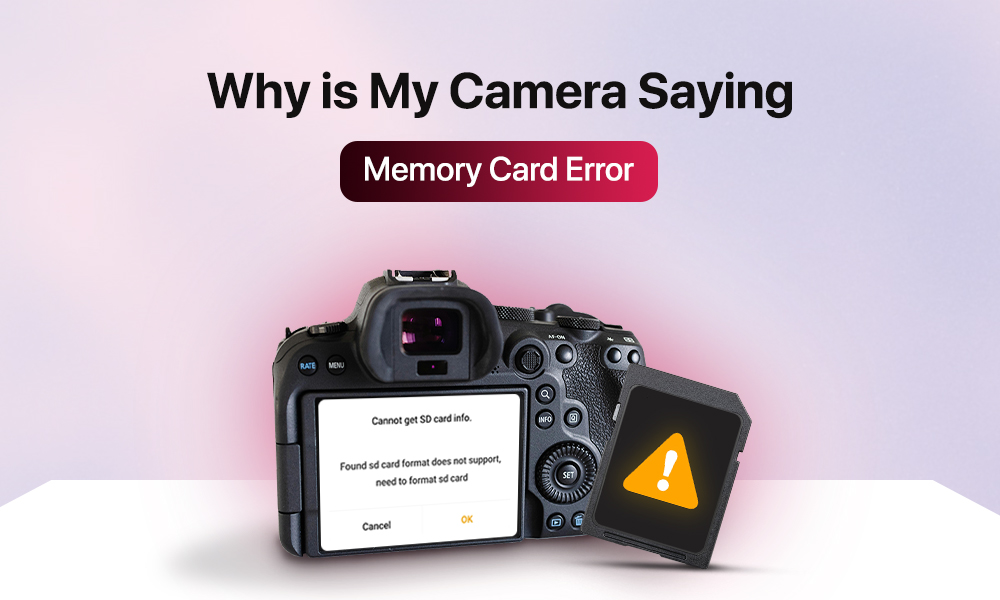
Picture the scene. You’re about to capture the perfect shot. Golden hour light, everyone in frame, smiles ready. But then a message is flashed by your camera: Memory Card Locked. The card is checked, the unlocked position is confirmed, and it is slid back in. No progress.
Whatever the cause, the error is rarely fatal. Most locked card warnings can be cleared without data loss. What is needed is a structured approach. That is exactly what this guide covers.
Table of Contents
What is the Memory Card Error “Card Locked”?
Why is My Camera Saying “Memory Card Error”?
How to Unlock Memory Card: Step-by-Step Algorithm
How to Prevent Memory Card Error “Card Locked” in the Future
Wrap Up
What is the Memory Card Error “Card Locked”?
When an SD card is “locked,” it means the camera has detected a write-protection signal. Essentially, an instruction says: do not write to this card. This is a built-in safety feature.
SD cards have a small physical tab on their left edge. You slid it downward to signal the camera that the card is read-only. That way, the important data is protected from accidental deletion.
But the system is not perfect. A tiny internal sensor is relied upon by the camera. Its job is to detect the position of the tab.
Sometimes, a mismatch is introduced between what is seen and what is detected. The card may appear to be physically unlocked, yet the dreaded locked error is still thrown.
Why is My Camera Saying “Memory Card Error”?
1. A lock tab is loose
The lock tab on an SD card is a small piece of plastic. Over time, it can become loose or worn. When the card gets pushed into the camera slot, the tab can be nudged downward. It gets placed into the locked position. This is the cause of the problem that is most frequently detected.
How to fix:
- Remove the card and look closely at the tab.
- Check if the tab is loose.
- Take a thin strip of clear tape.
- Place it over the tab.
- The tab must be held firmly in the unlocked position.
Such a low-tech solution works reliably and won’t harm the card.
2. A write-protect sensor is faulty
There’s a tiny pin or switch on the wall of the card slot that reads the position of the SD card’s lock tab. This sensor can bend, get stuck, or accumulate dust and debris. As a result, the card can be permanently reported as locked. The tab’s actual position won’t matter.
How to fix:
- Remove the card.
- Shine a light into the card slot.
- Look carefully at the left wall.
- Look for a small, spring-loaded pin.
- If it appears bent or stuck, blow compressed air into the slot.
- If the pin looks physically damaged, contact a hardware repair professional.
3. The card has compatibility issues
Not all SD cards are supported equally across all cameras. Older camera bodies can be challenged by newer, higher-capacity SDXC cards. Some manufacturers are known to be pickier than others when it comes to card brands and speed classes.
How to fix:
- Try a different card.
- Choose a different brand.
- Opt for a smaller capacity card.
- If a second card works fine, the original card may be the culprit.
4. The SD card has entered read-only safe mode
Flash memory has a lifespan. After thousands of write cycles, sectors on an SD card can begin to fail. When this happens, many SD cards are designed to automatically enter a read-only safe mode.
This is the most serious scenario because it usually means the card itself is at the end of its life.
How to fix:
- Use a card reader to insert the card.
- Check if you can read files but not write new ones.
- If this is the case, the card has likely entered safe mode.
- Back up everything on it immediately.
- Attempt a low-level format using the official SD Association Formatter tool.
- If the card continues to act up after formatting, replace it.
5. No fresh firmware update
In rarer cases, a misread card’s status can be caused by a bug in a software update. This has been documented across several camera brands. The issue typically manifests itself after a firmware rollback or failed update.
How to fix:
- Go to your camera manufacturer’s website.
- Check if firmware updates are available.
- Install the updates (if any).
- Try resetting the camera to factory defaults.
How to Unlock Memory Card: Step-by-Step Algorithm
These are the steps to follow in case of a memory card error:
- Remove the card.
- Check the lock tab.
- Tape the tab.
- Try a different SD card.
- Inspect the card slot for debris.
- Test the original card in a computer.
- Run the SD Card Formatter tool on your computer.
- Update your camera’s firmware.
- Contact the manufacturer.
How to Prevent Memory Card Error “Card Locked” in the Future
- Avoid touching the SD card’s gold contacts.
- Store cards in a case.
- Format cards in-camera rather than on a computer
- Replace SD cards every few years (for heavy use).
Wrap Up
The “memory card locked” error is one of those problems that looks catastrophic in the moment. Remember, it almost always has a straightforward fix. A piece of tape, a different card, or a quick look at your camera’s card slot. These steps are typically enough to get back to shooting.
