





Photos store our memories of special, yet fleeting moments of our lives. It comes as no surprise that losing the content of your gallery is, probably, one of the worst nightmares for most users. How to recover photos on iPhones or Android devices? What causes images to disappear?
Read on to check some of the solutions.
Contents
1. Why do my photos disappear from the gallery on iPhone?
- Reasons
- Quick fixes
2. Why do my photos disappear from the gallery on Android?
- Reasons
- Quick fixes
3. How to prevent file loss with the 3-2-1 strategy
4. Conclusion
5. FAQ
Why Do My Photos Disappear From the Gallery on iPhone?
The permanent deletion of files in the iPhone Photos App, also referred to as the gallery, is not very common. This is because the files are protected from permanent deletion by backing up the files using iCloud. In the event of theft of the iPhone or the desire to change the phone, the files can be restored using the iCloud account. However, there are times when data loss occurs.
Common reasons why your photos disappeared from (iPhone and iCloud)
| iCloud issues | Photos fail to upload as your iCloud storage is full, or iCloud Photos sync is disabled. |
| Manual deletion | You can accidentally remove some files from your phone, either by misclicking “Delete” or taking an original photo for a duplicate. Once photos are removed from Recently Deleted, they will not appear in the Library. |
| Hidden albums | You may accidentally hide the album and consider the files deleted. |
| iPhone optimization | Your iPhone erases high-resolution images from your device and uploads them to the cloud. |
How to bring the photos back (quick fixes for iPhone)
- Restore from Recently Deleted. Go to the Recently Deleted folder and look for the deleted photos. Typically, all deleted files are stored in this folder and can be restored within 30 days.
- Display hidden albums.
- Open Settings and navigate to Photos.
- Enable “Show Hidden Albums”
- Return to the Photo app.
- Go to Utilities and then to Hidden.
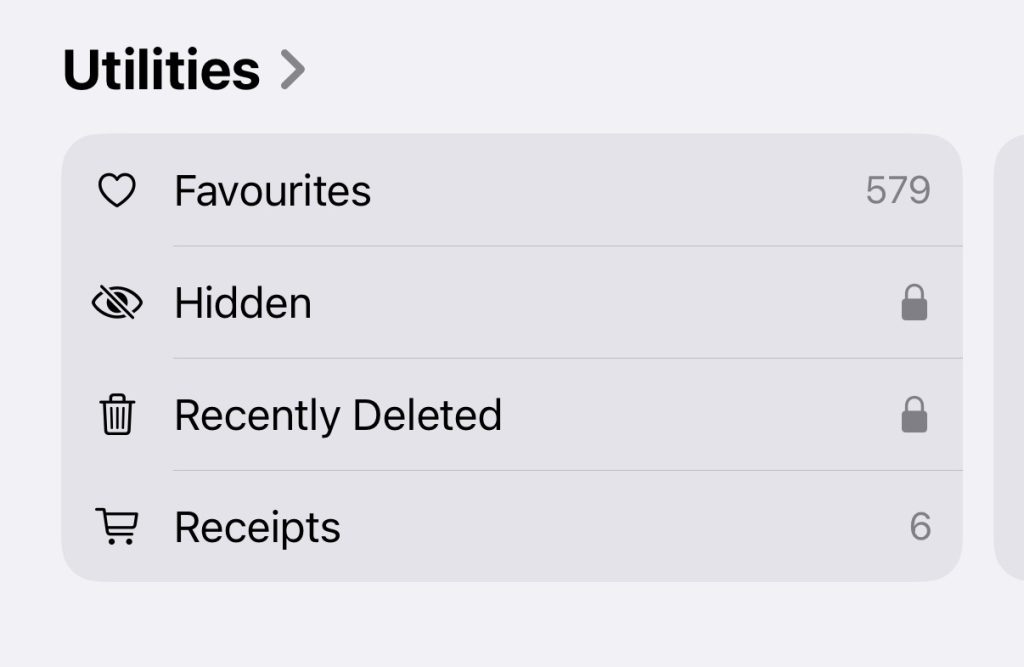
- Check if you see the files there.
- Check if iCloud Sync is on.
- Open Settings and navigate to iCloud.
- Choose Photos.
- Check if Sync is enabled.
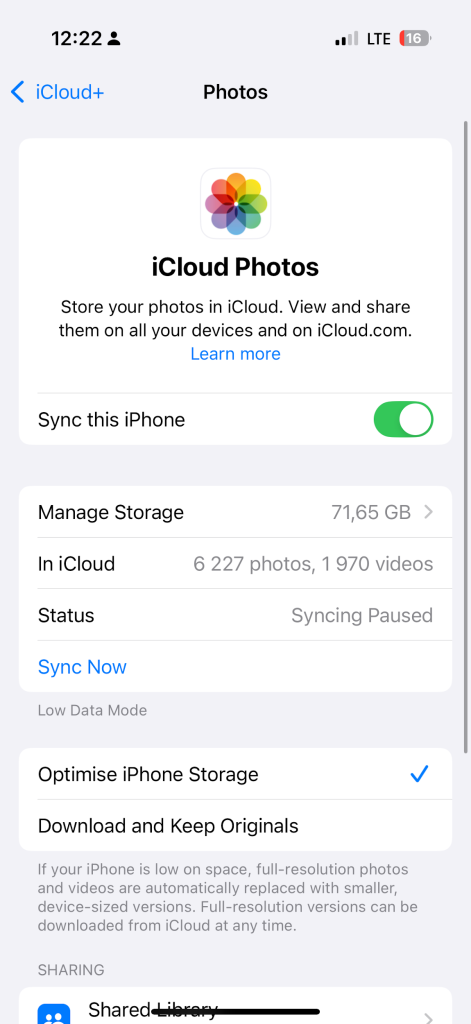
- Disable storage optimization.
- Go to Settings and check if Optimize Phone Storage is on.
- Choose Download and Keep Originals.
You cleared up the trash from your iPhone, and your photos seem to be gone forever? Use professional data recovery apps to restore them. Professional data recovery tools from Stellar can effectively recover files lost from your iPhone, including photos, audio, and video.
Why Do My Photos Disappear From the Gallery on Android?
Missing photos from the Gallery app on Android can generally be attributed to two main factors. One is human error (no one is safe from it), while the other is software-related issues. The latter come in all shapes and forms, and the fix will depend on the root cause of the issue.
Reasons why your photos disappeared from the gallery (Android)
| Accidental deletion | You can accidentally delete the files while organizing your storage, or a cleanup app can remove files it identifies as “junk”. |
| Android update | An Android update can cause the Gallery app to reset, and your photos can get displaced, or even deleted. |
| Faulty Gallery App | Cache corruption or issues with the Gallery app itself can cause your files to not be displayed properly. |
| Cloud upload | Your phone may be set in such a way that once it uploads the files to the cloud storage, they get removed from the device. |
| SD Card issues | Files stored on an SD card can disappear due to card corruption or physical damage. |
How to bring the photos back (quick fixes for Android)
- Restore the files from Trash
- Open the Gallery and choose Trash.
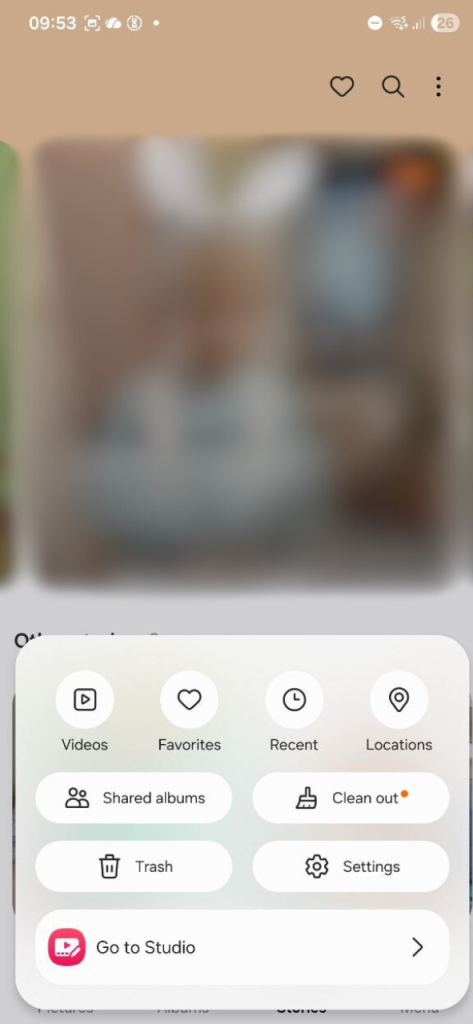
- Select the image and restore it.
- Check if the file reappeared in the Gallery
- Restore from the cloud backup
- Open your Google Photos (or another cloud solution).
- Go to Trash.
- Check if the missing files are stored there.
- Restore the needed files.
- Remove the cache in the Gallery
- In Settings, go to Apps and Application Management.
- Go down and choose Gallery.
- Execute Force Shutdown.
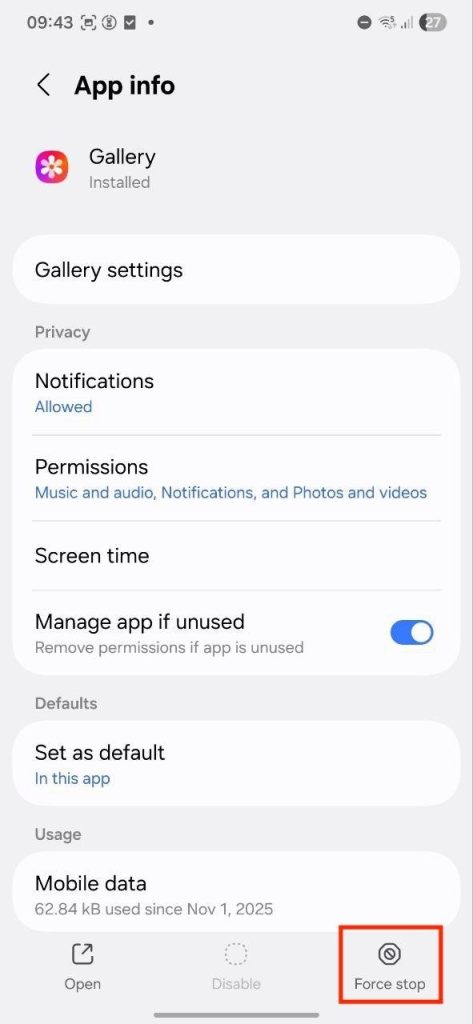
- Clear Cache.
- Check the Gallery app for missing photos.
- Scan your SD card for viruses
- Take out the SD card where you store your photos.
- Connect it to your PC.
- Check if your computer can recognize it.
- Scan the card for malware.
- Put the card back in your phone.
- Check if the lost photos are back.
How to Prevent File Loss with the 3-2-1 Strategy
We all know the importance of cloud storage backup, but this might not be sufficient. Deploy the 3-2-1 backup technique to lessen the likelihood of accidental file removal.
- Create three copies of your photos. You can keep originals on your go-to device and create two more copies.
- Store files on two different devices. Upload your photos to two separate locations (not including one cloud storage), a computer, an SD card, and a USB flash drive also qualify.
- Keep one copy off-site. Store one copy off-site in case of an emergency or a cloud storage site outage.
In Conclusion
Data loss is the one thing that can and should be stopped! You have plenty of options to protect your data; whichever way you decide, be sure to back it up properly. If, despite best efforts, you can’t find the pictures on your phone, do not sit on this. Find out what’s to blame and address it quickly. In the more complex scenarios, you may need to use data recovery software.
FAQ
You cannot see some of your pictures in the Samsung Gallery due to the presence of a “.nomedia” file. It hides the pictures from the Gallery scanner, and hence they cannot be viewed. However, they can be viewed in My Files.
In most cases, photo loss occurs due to incorrect backups or issues with phone settings. Human error is also frequent. Finally, the files can be removed by malicious software.
